
Your chatbot is only as good as the information it has. Out of the box it knows nothing about your business; but the Knowledge tab is where you teach it everything it needs to know, so it can answer your visitors' questions accurately and confidently.
This How To walks through every source of knowledge your chatbot can draw on: crawling your site with an XML sitemap, adding Custom URLs, writing Manual Q&A, and how the page limits work on each plan.
Before you begin
This How To assumes you have already created an account and added your website, and set up your chatbot. If not, please do those first.
Go to the Knowledge tab
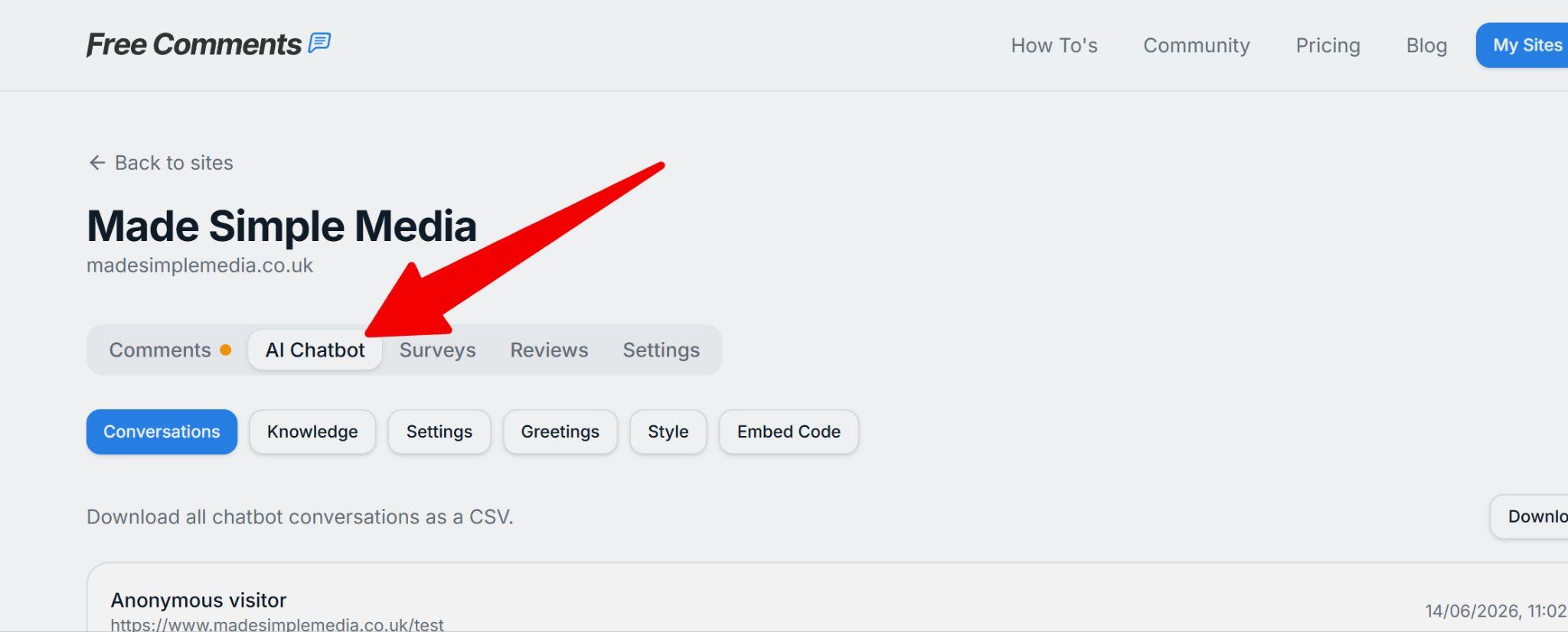
Log in to Free Comments, go to My Sites, and click on your website. Then click the AI Chatbot tab:
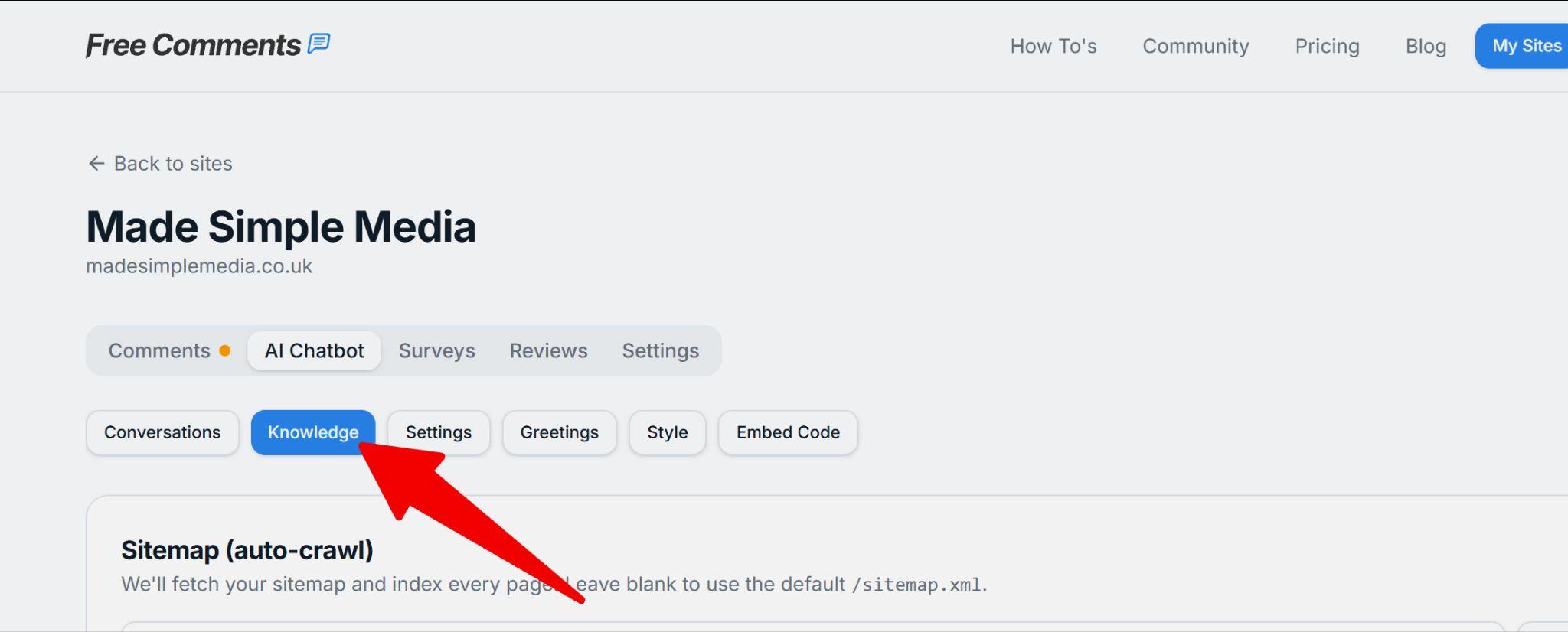
Inside the AI Chatbot section, click the Knowledge tab. This is the heart of your chatbot; everything in here gets read, broken into chunks, and turned into the answers your visitors see:
Crawl your site; you need an XML sitemap
The main way your chatbot learns about your website is by crawling it. To do that, it needs your XML sitemap; a file that lists every page on your site so search engines (and your chatbot!) can find them all.
If you're not sure what an XML sitemap is or where to find yours, please read Google's guide to sitemaps first. Most websites generate one automatically, and it almost always lives at the root of your domain.
Common places to find your sitemap:
https://yoursite.com/sitemap.xml; the default. We use this automatically if you leave the field blank.https://yoursite.com/sitemap_index.xml; common on larger sites with many pages.https://yoursite.com/sitemap-index.xml; another common variant.- If you use WordPress, Shopify, Wix, Squarespace or most other builders, your sitemap is generated for you; just visit one of the URLs above to check.
To confirm it exists, simply open the URL in your browser. If you see a page full of links (or XML code), you've found it. If you see a "404 / page not found", your site may not have a sitemap; most website builders and SEO plugins can generate one for you in a couple of clicks.
Make sure the path is correct and click Save
Back in the Knowledge tab, paste your sitemap URL into the Sitemap (auto-crawl) field:
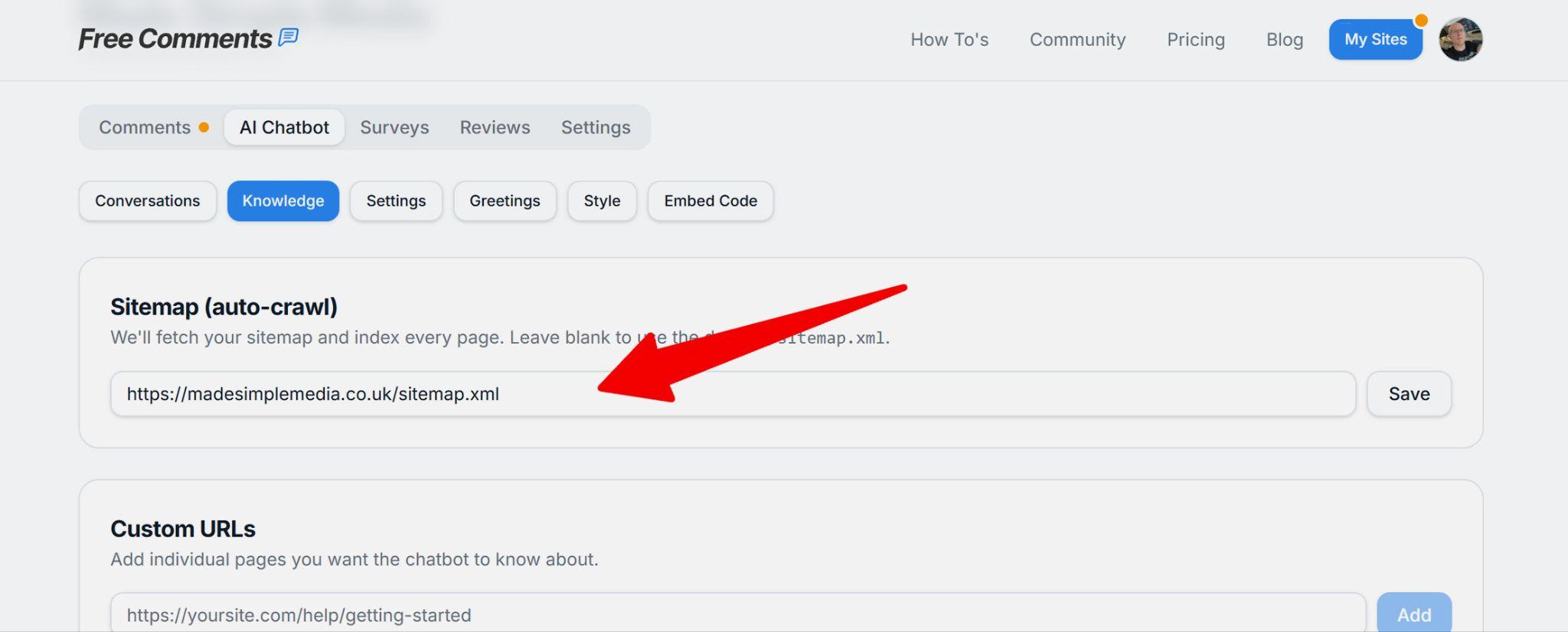
You can leave this field blank if your sitemap is at the default /sitemap.xml path; we'll find it automatically. If your sitemap lives somewhere else (for example /sitemap_index.xml), enter the full URL here instead.
Make sure the path is correct, then click Save. A quick way to be sure: open the URL in your browser first and confirm it loads; if it loads for you, the chatbot will be able to reach it too.
Adding Custom URLs (paid plans)
Most of your pages will already be discovered by crawling your sitemap. Custom URLs let you reinforce specific pages you want the chatbot to know about for certain; your pricing page, your delivery information, your key service or product pages, and so on.
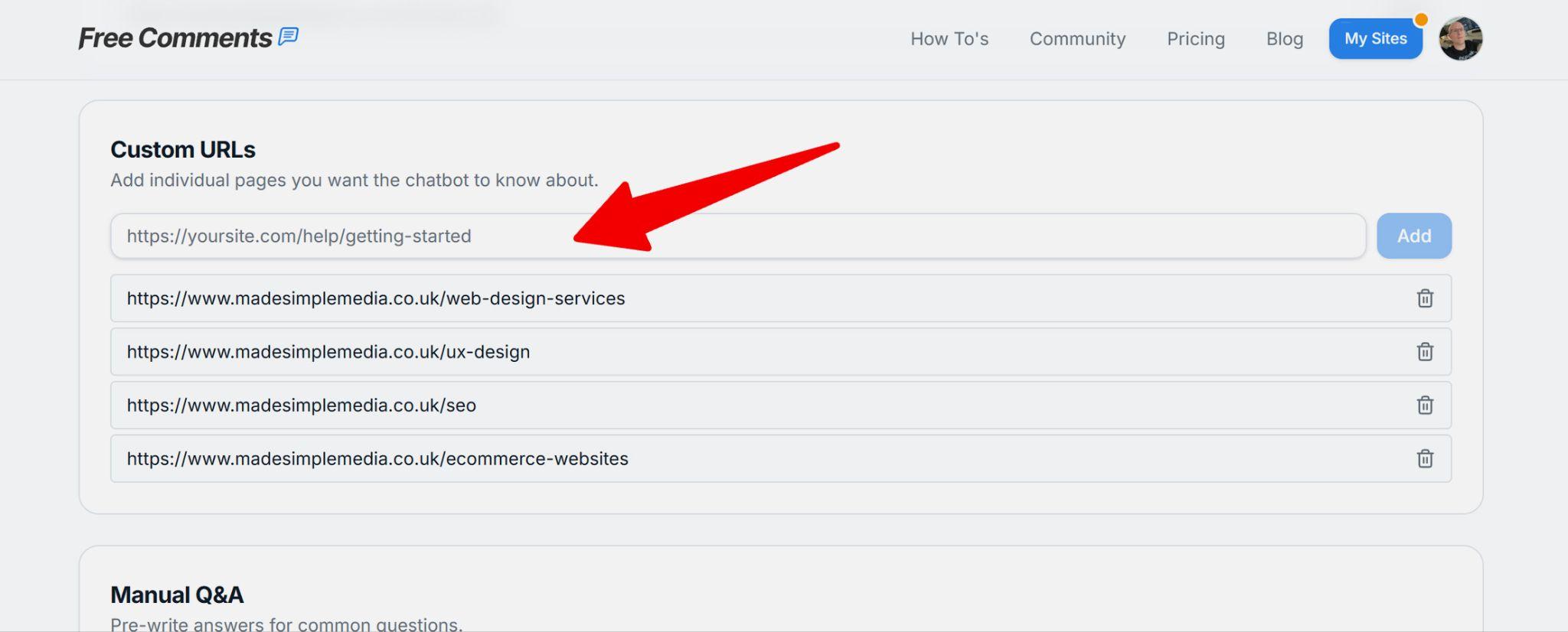
To add one, enter the full URL of the page and click Add. The page will be fetched and indexed the next time you re-index your site.
Tip: use Custom URLs for the pages your visitors ask about most. Think about the questions you get asked again and again; pricing, delivery times, returns, opening hours; and make sure those pages are covered.
Custom URLs are available on the Pro and Agency plans. On the Free plan this section is locked, but your sitemap crawl still covers your whole site.
Adding Manual Q&A (paid plans)
Sometimes your website doesn't contain the answer, or the chatbot just hasn't quite understood it. Manual Q&A lets you pre-write exact answers for common questions; perfect for FAQs, opening hours, or anything a visitor might ask that isn't written on a page.
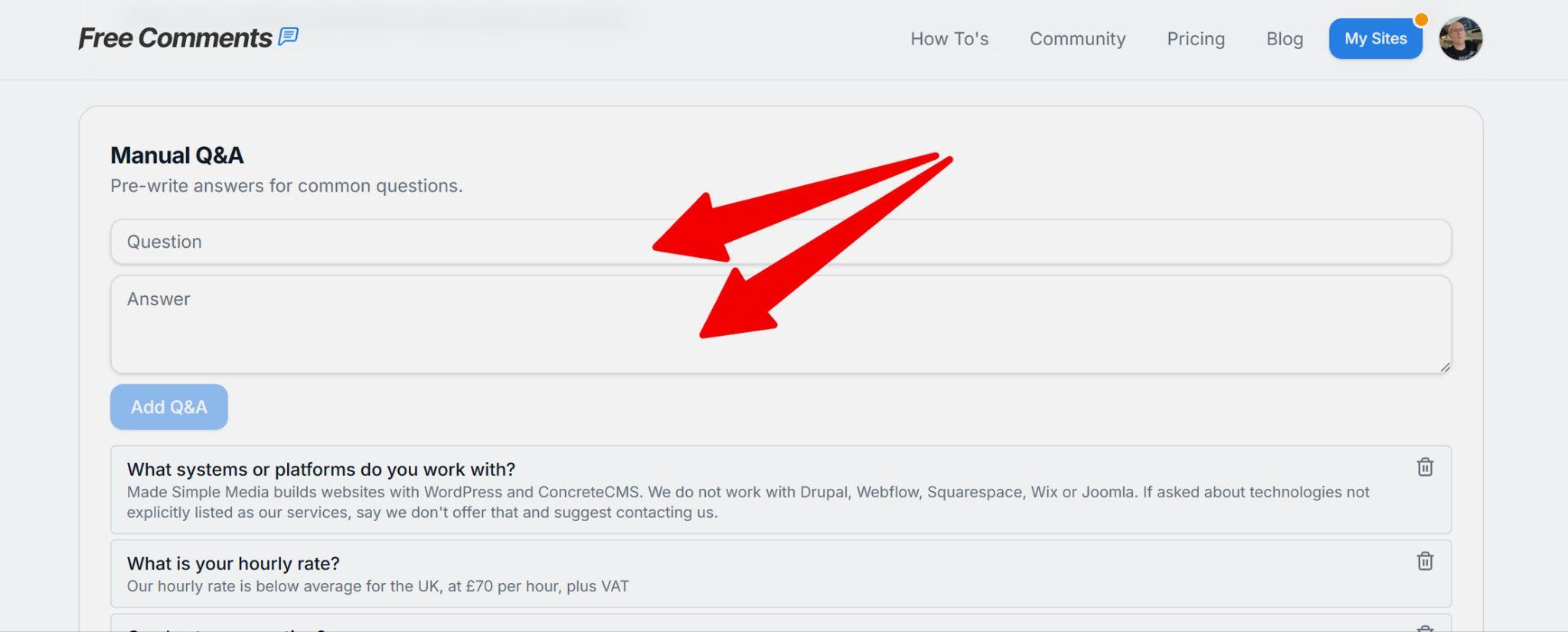
Enter the Question you expect a visitor to ask, then the Answer you want the chatbot to give, and click Add Q&A.
When you test your chatbot and find things it doesn't know; this is where you teach it. Add the question and the correct answer, re-index, and the chatbot will get it right next time.
Manual Q&A is available on the Pro and Agency plans.
Index / Re-index your site
Once you've added your sitemap (and any Custom URLs or Manual Q&A), click Re-index now at the bottom of the Knowledge tab. This sends the chatbot off to read all of your content and turn it into answers:
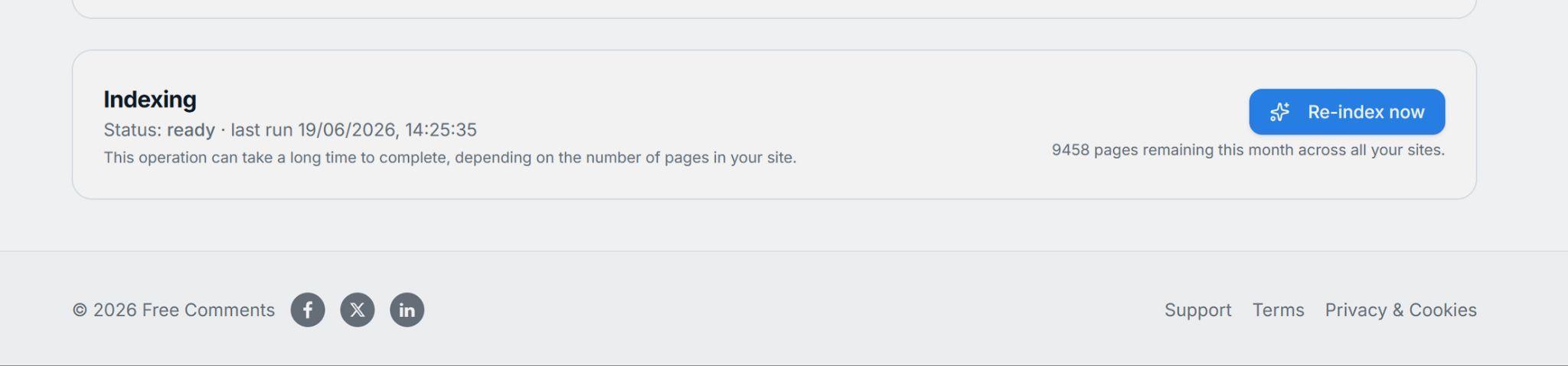
Important: indexing can take a while, especially on larger sites with lots of pages. You can leave the page and come back; we'll show the status here when it's done.
Whenever you add new content to your website, or add new Custom URLs or Manual Q&A, come back and Re-index so the chatbot learns the latest version of your site.
How many pages can be indexed on each plan?
Each plan has a monthly limit on the number of pages the chatbot will crawl and index. This resets at the start of each calendar month:
- Free; up to 100 pages crawled per month.
- Pro; up to 1,000 pages crawled per month.
- Agency; up to 10,000 pages crawled per month, shared across all your sites.
You can see how many pages you have remaining this month right under the Re-index now button. If you reach your limit, indexing pauses until the start of the next month; you can upgrade your plan any time for a higher allowance.
For most small and medium websites, even the Free plan's 100 pages is plenty to get started. Larger sites or online shops with hundreds of products will benefit from the higher limits on paid plans.
Test and refine
After indexing, test your chatbot by asking the kinds of questions your visitors will ask. If it doesn't know something it should, go back and add the information via Custom URLs or Manual Q&A, then re-index. Over time your chatbot will get smarter and smarter.
Getting started
A well-trained chatbot is one of the most effective ways to engage your visitors and turn them into customers. You can get started for free, and upgrade for a higher page limit plus Custom URLs and Manual Q&A when you're ready.