
The moderation queue
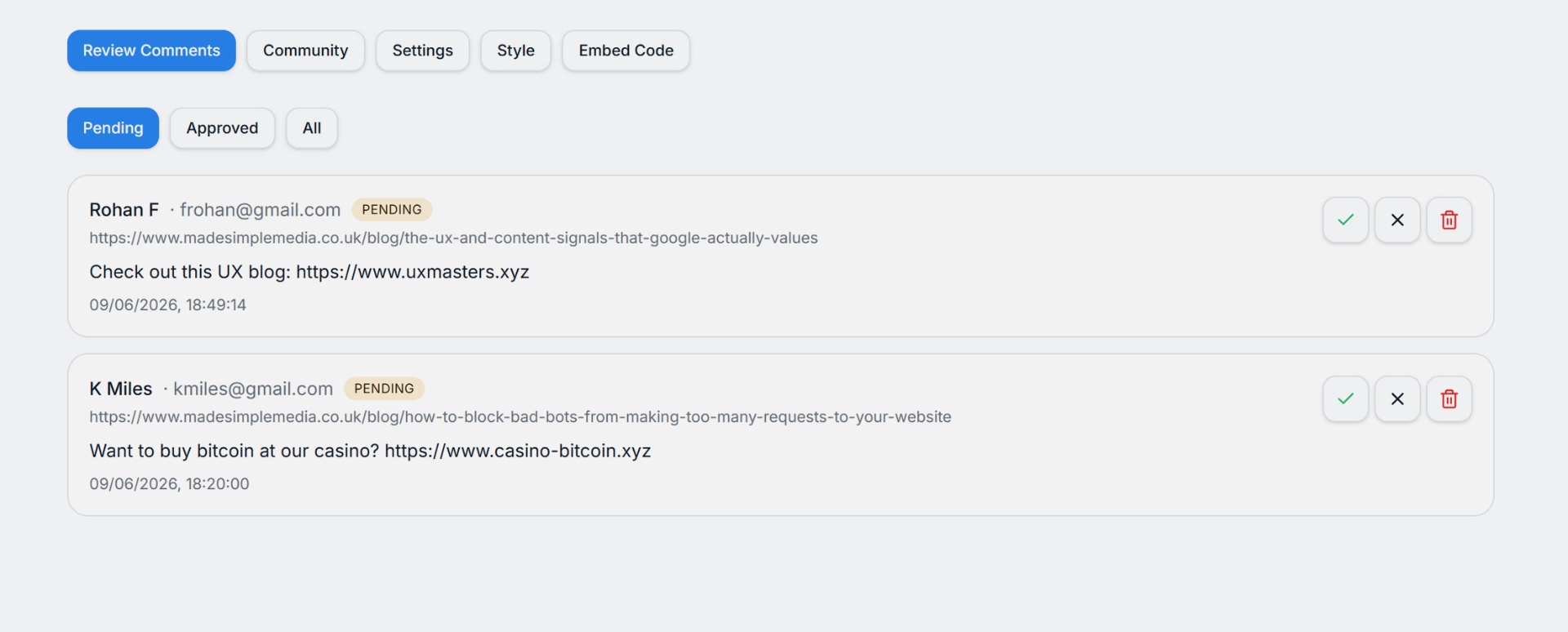
Every comment posted to your site shows up in your dashboard under the site it was submitted to. Open the site to see comments grouped by status: pending, approved, and rejected.
AI-powered screening
Free Comments uses a powerful Artificial Intelligence algorithm to screen new comments for obvious spam, abuse, or low-quality content before it reaches you. It makes comment-moderation a breeze, saving you time! Of course, you can still approve or unapprove comments that you don't like the look of.
Approving and rejecting
- Approve — the comment is published in the widget and counts toward the thread's total.
- Reject — the comment is hidden from the widget. The commenter is not notified.
- Reply — replies you post as the site owner are clearly attributed and threaded under the original comment.
Replies and notifications
When people comment on your site, they can check a box to receive replies to their email so the conversation can continue. Rejected messages won't be visible or receive replies, they will never show on your website.
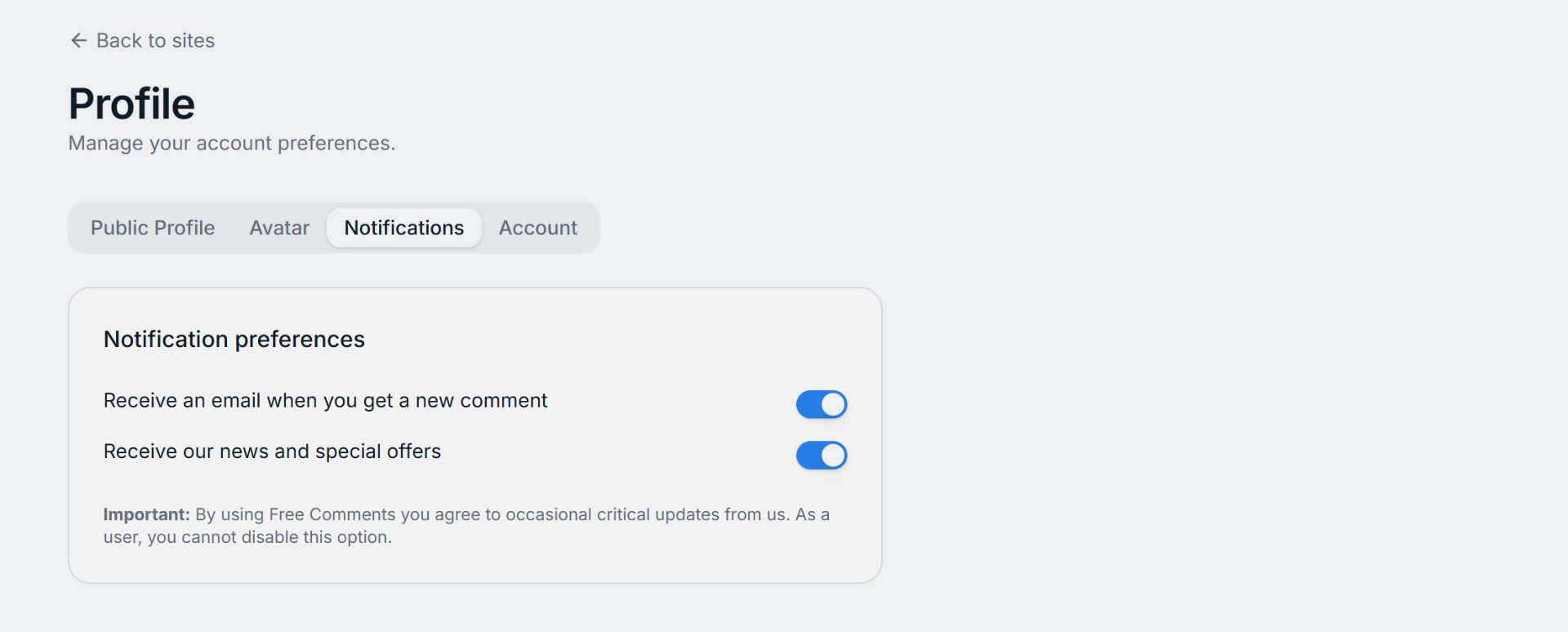
You will also receive the useful daily digest of new comments across your site(s) by email. If you prefer, you can opt-out of email notifications like this in your profile.
What you can see about a commenter
In the "Review Comments" section, each comment includes the visitor's name, email, and the page URL they commented from. Emails are visible only to you, the site owner, so you can moderate and follow up. They are never shown publicly in the widget.
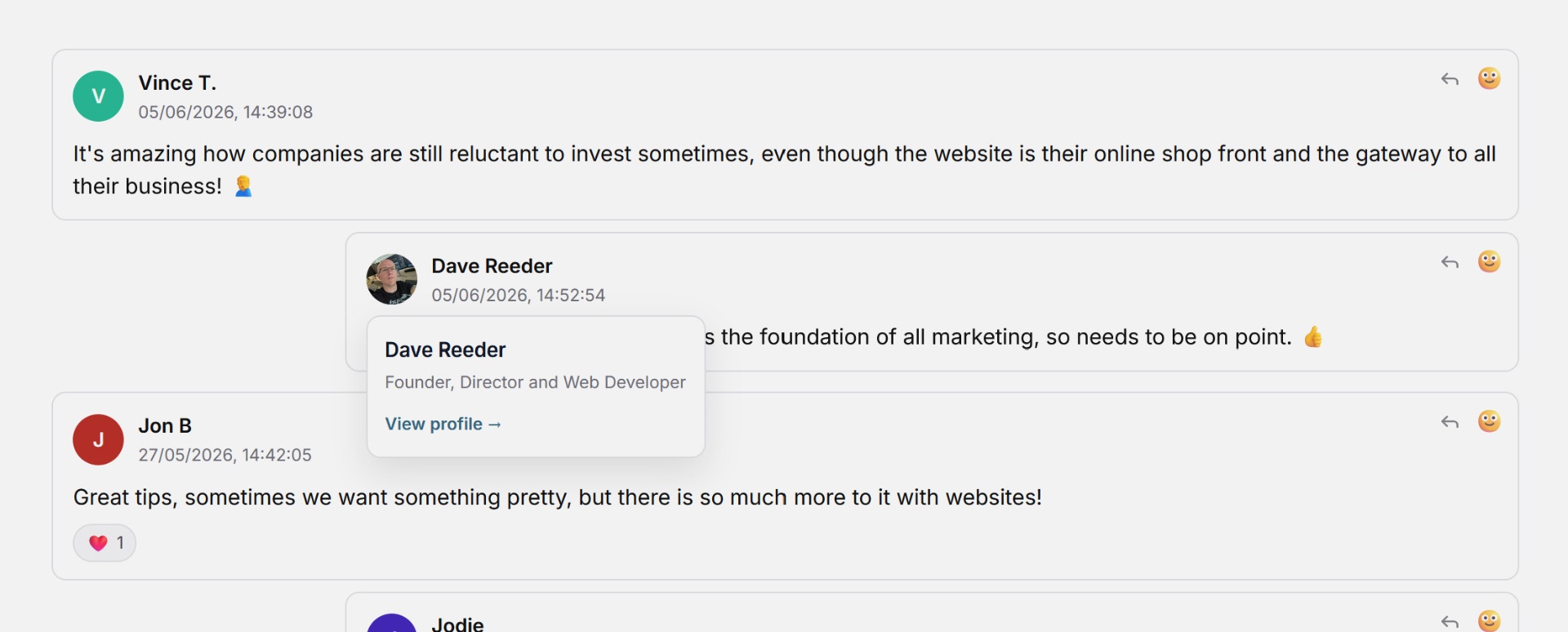
The widget shows a bit more information for users of freecomments.io, so you can view their profile and learn more about your audience.
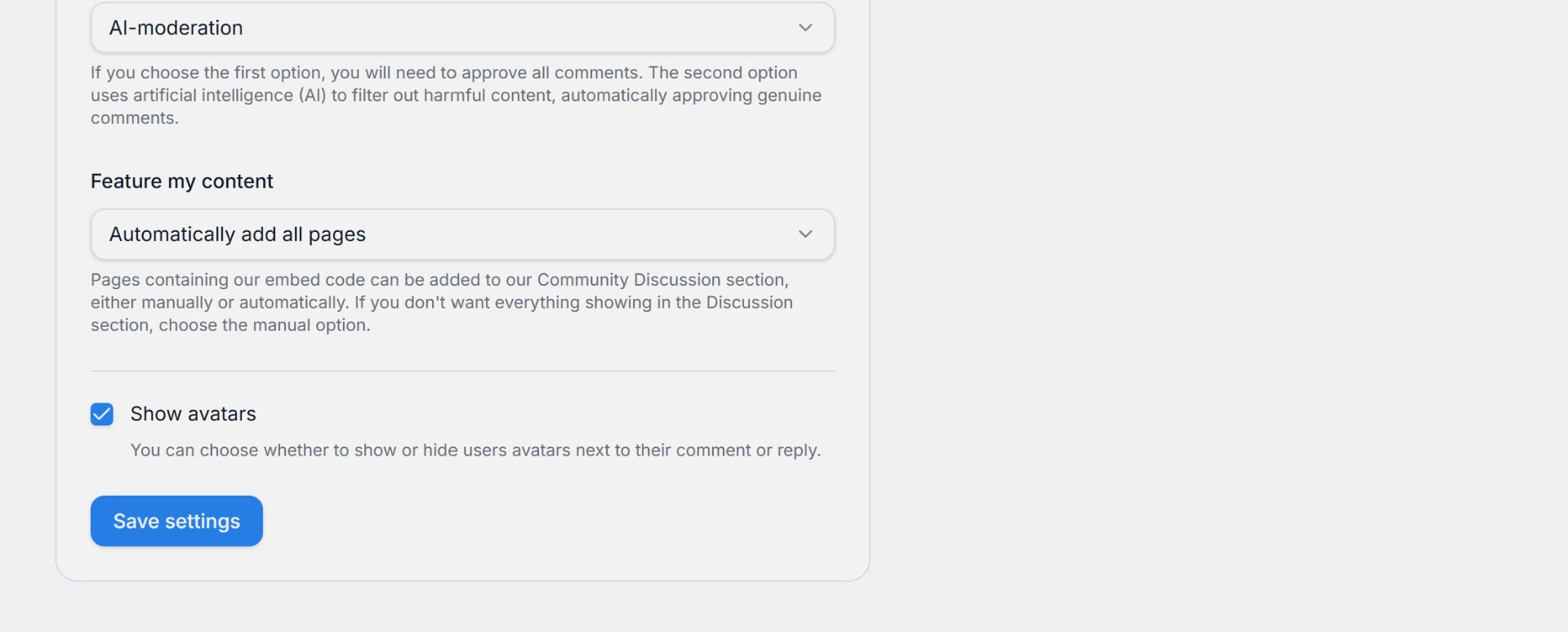
You can hide avatars in the comments, but unchecking this box, which is under Comments > Settings:
Tips for a healthy thread
- Approve quickly — fast turnaround keeps conversation flowing.
- Reply to thoughtful comments — it encourages others to engage.
- Don't be afraid to reject. Your site, your standards.