
Surveys are a great way to find out what your visitors actually think. In this How To we assume you've already set up your Free Comments account and completed your site and survey style settings.
Plan your survey
Before you build anything, have a good think about what you want to accomplish. What do you want to find out from your users?
- What will you ask? What do you need to know?
- Is it long enough that you should break it into pages (paid plans only)?
Once you know that, you can start to build your survey…
Creating and editing surveys
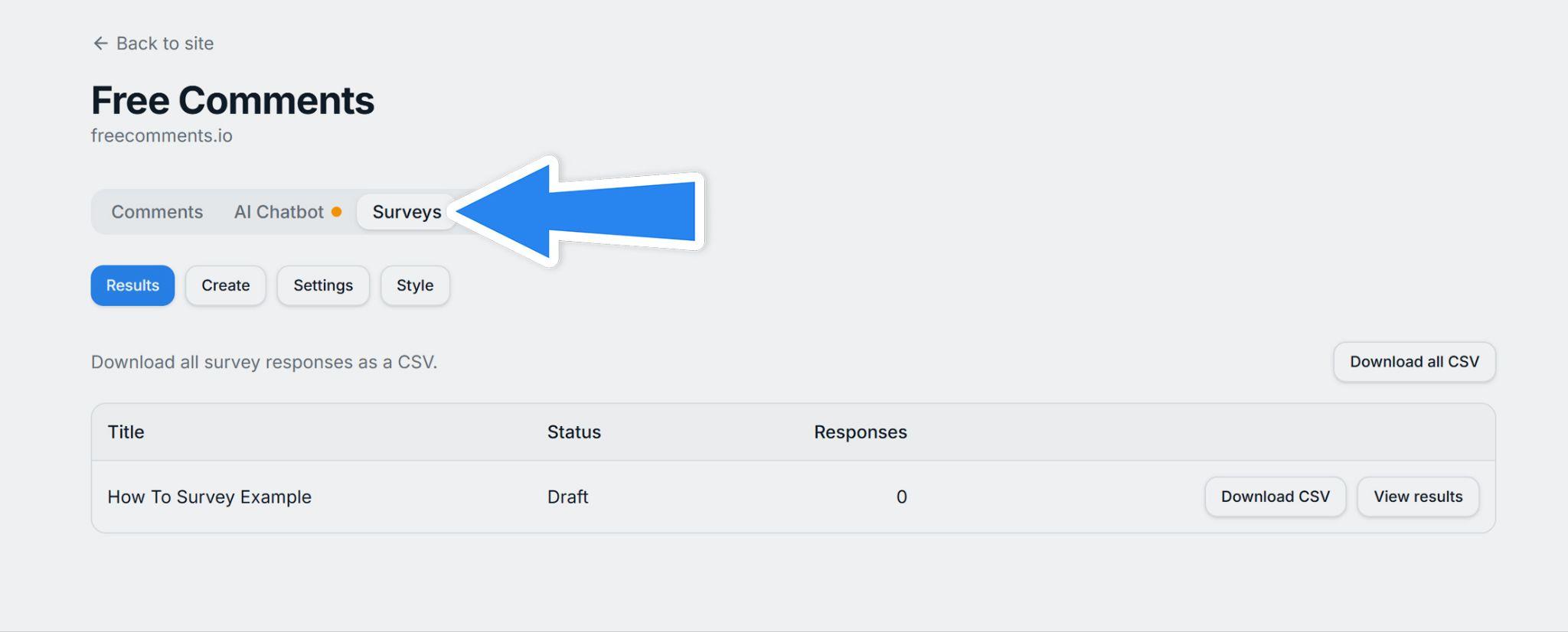
Log in to Free Comments, open My Sites, click your website, then open the Surveys tab to find the survey settings for that site:
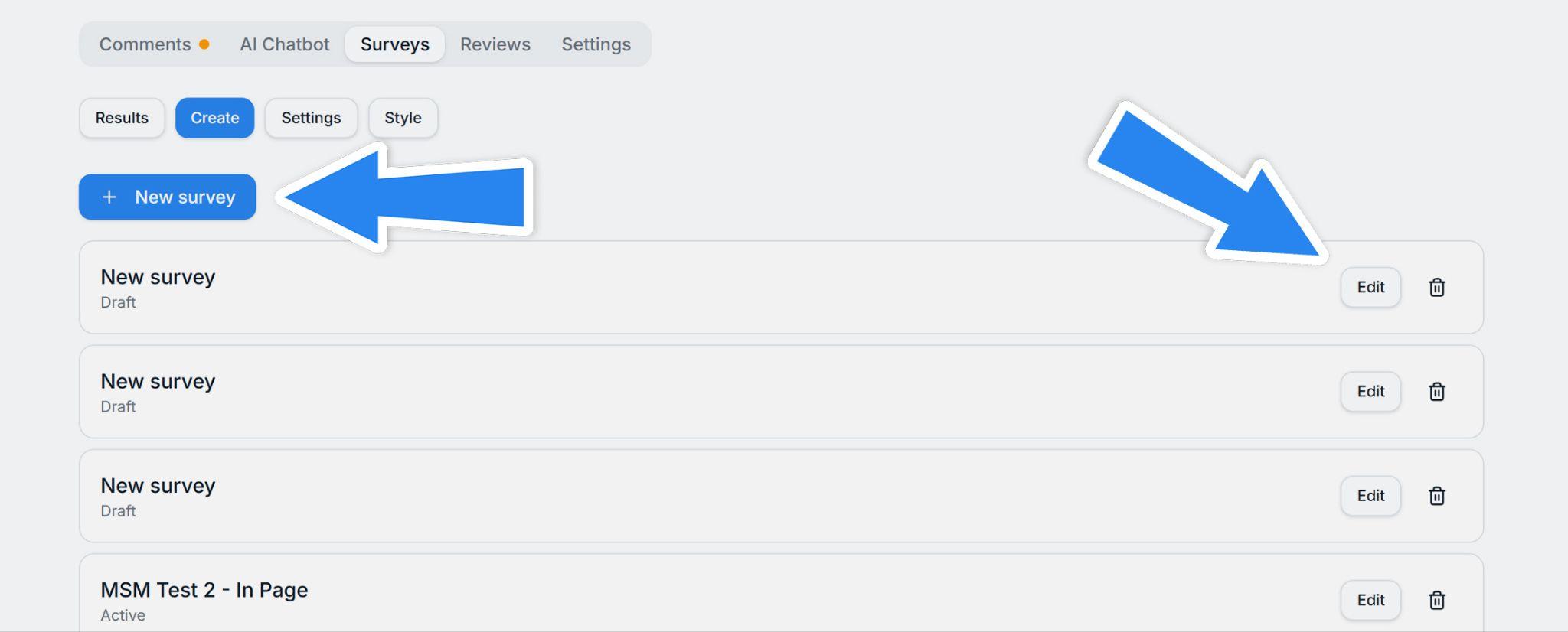
From there you can either create a new survey, or edit an existing one if you already have some:
Adding questions to your survey
Next you'll want to add questions to your survey — after all, it's pretty useless without them!
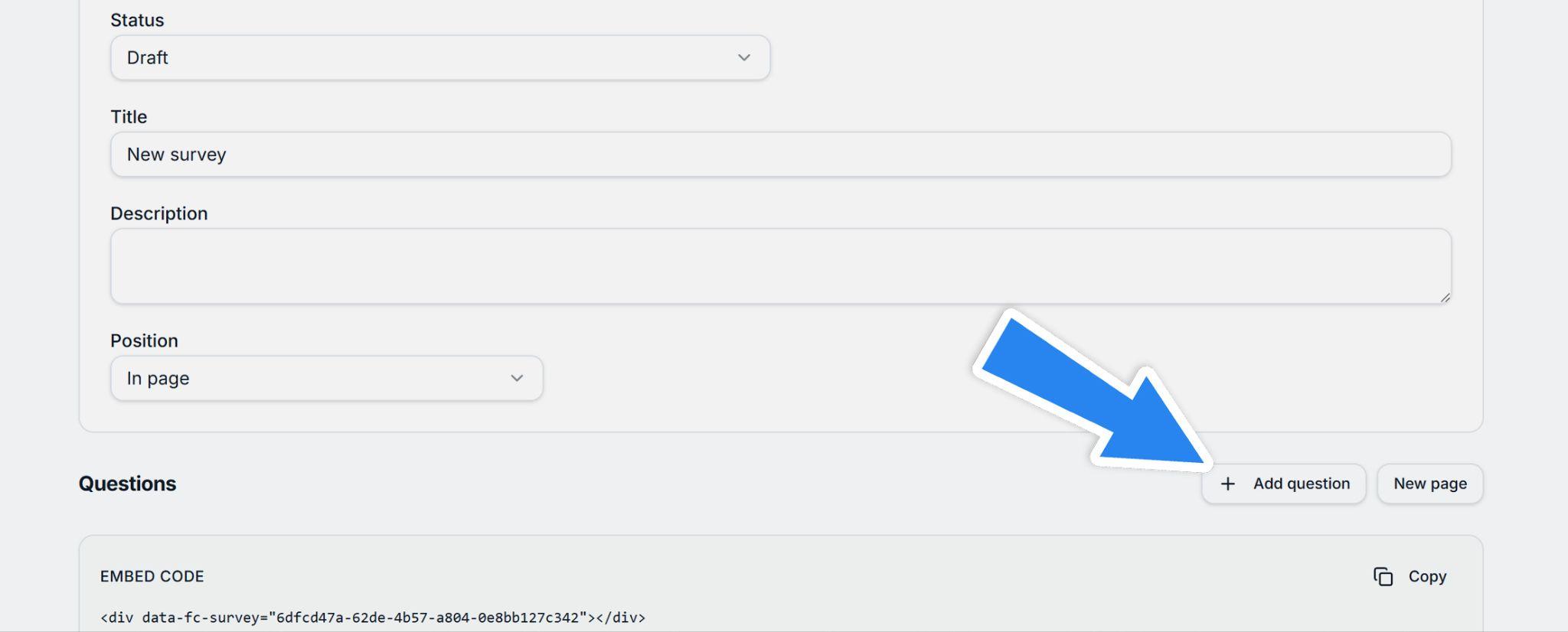
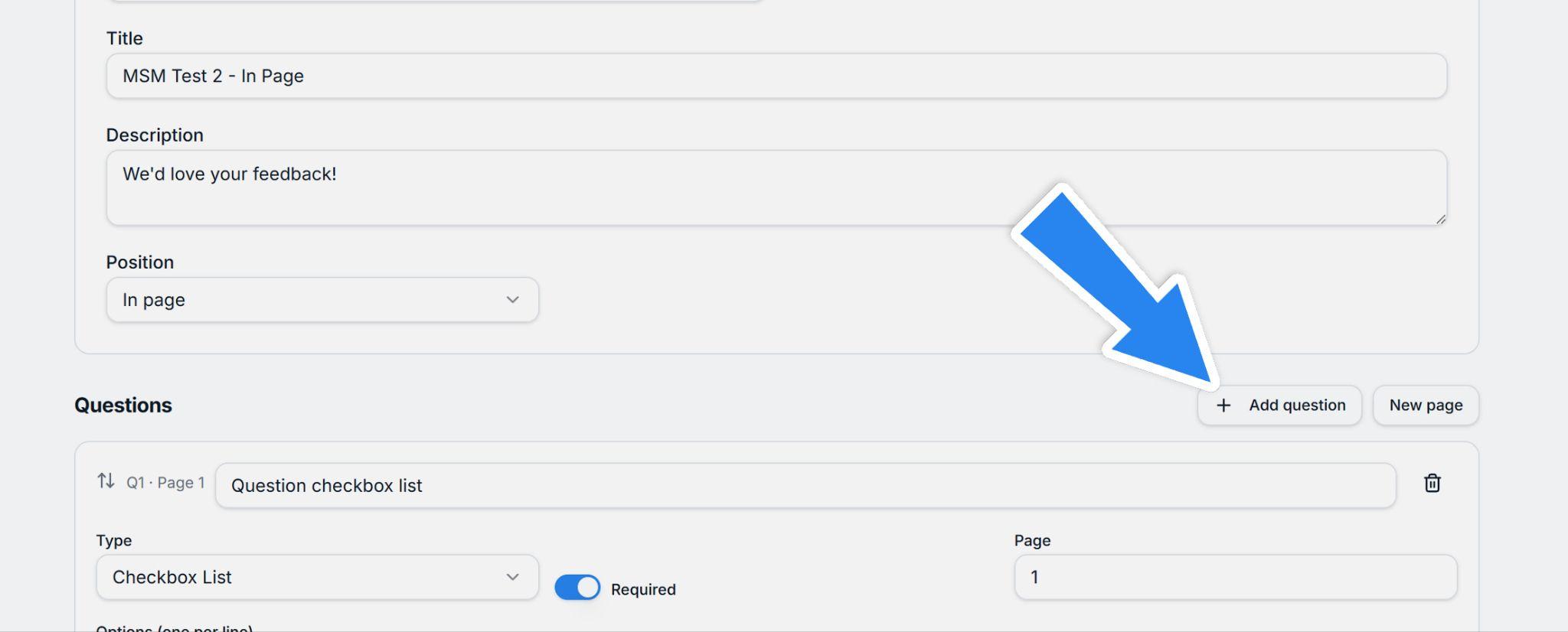
Click Add question here:
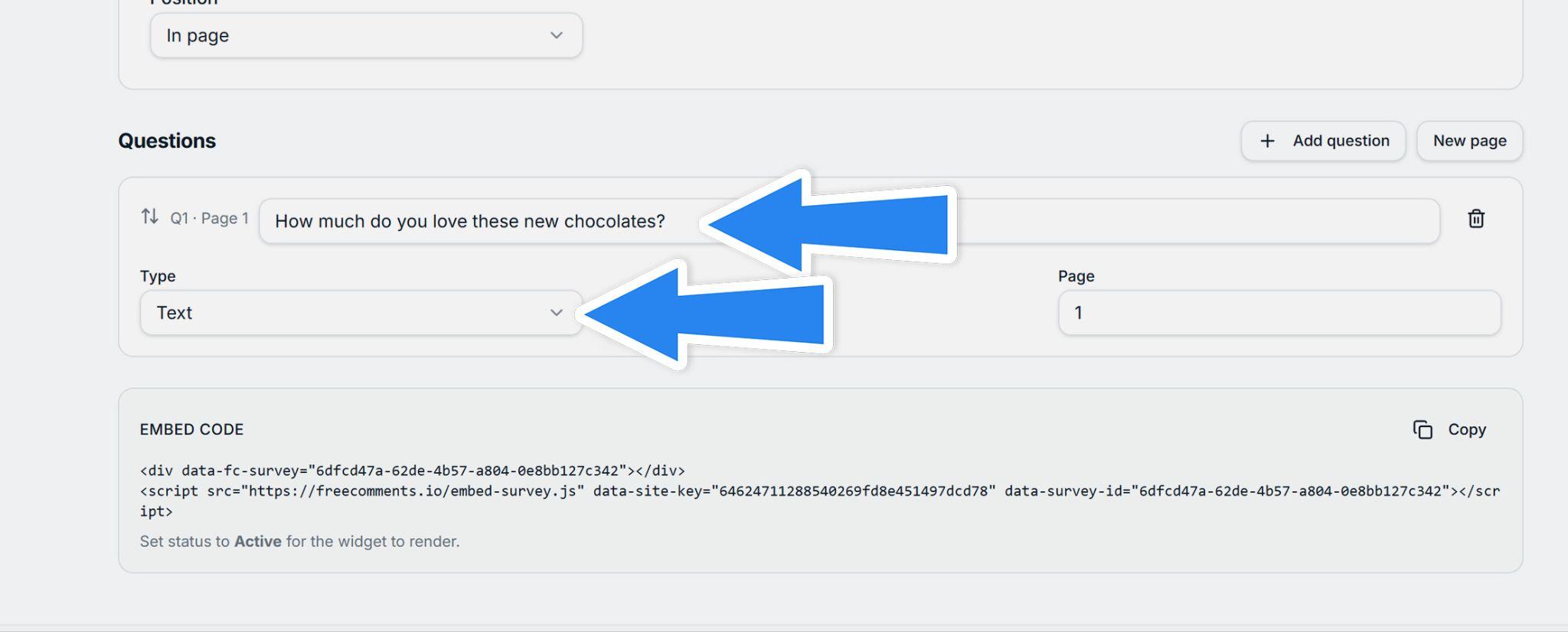
Then enter the text for your question and choose which type of question it is:
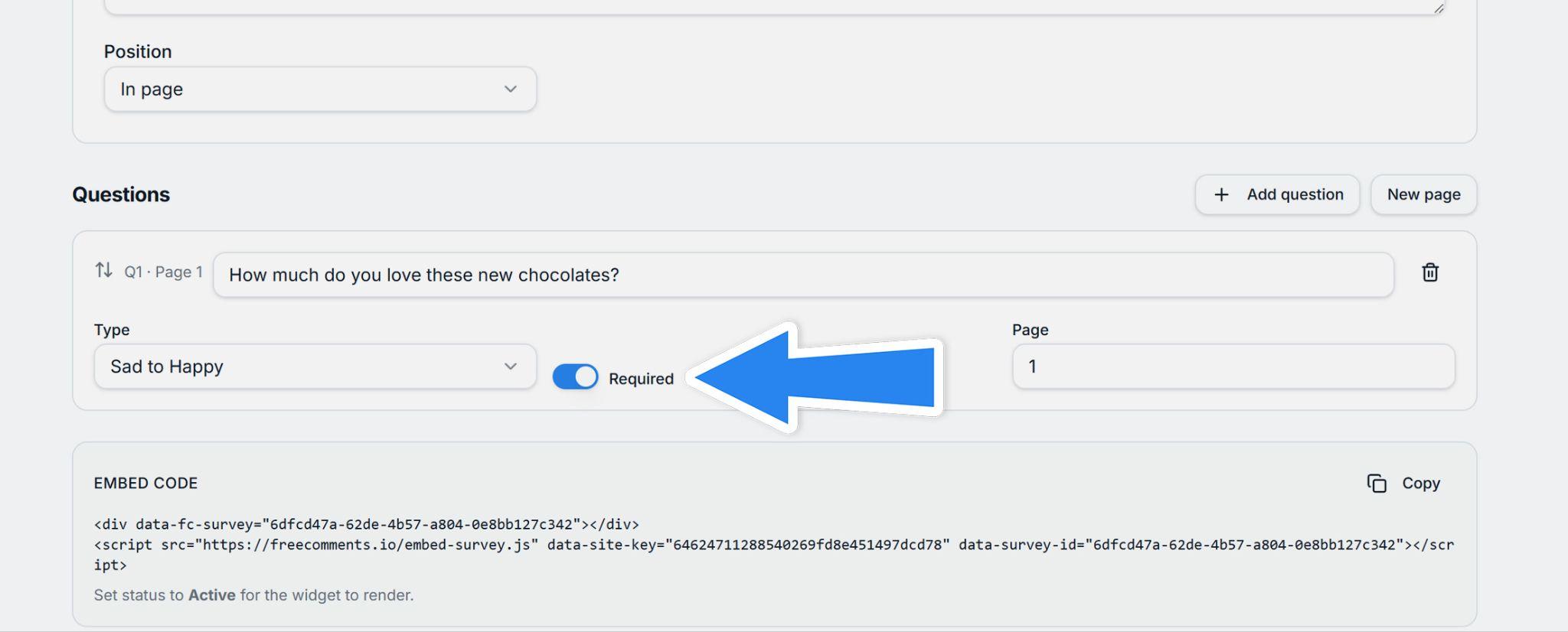
And finally whether your question must be answered by the user or not:
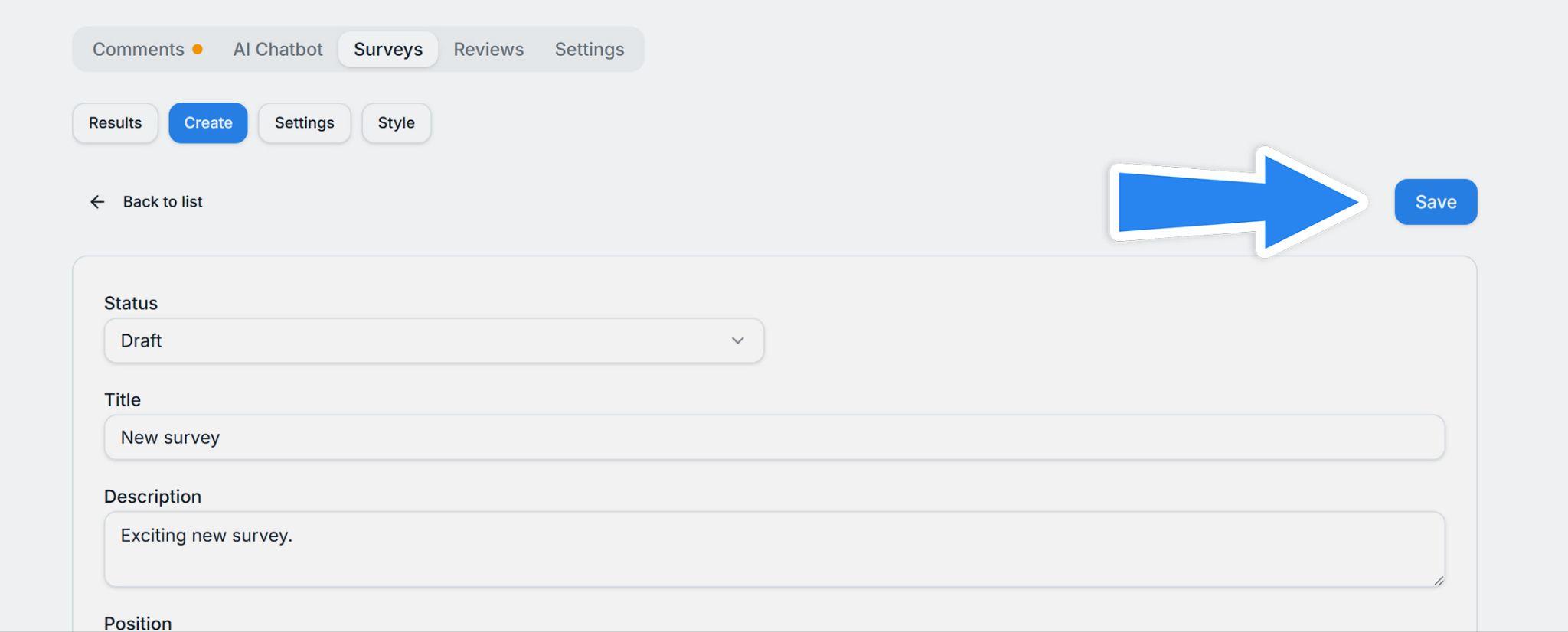
Add all your questions, then click Save to save your survey:
Paginated surveys (paid plans)
If you're on a paid plan you can add pages to your survey.
Add the question(s) you want on page one, then click the New page button to add a new page:
You'll also see which page each question is on in the top left of the question box:
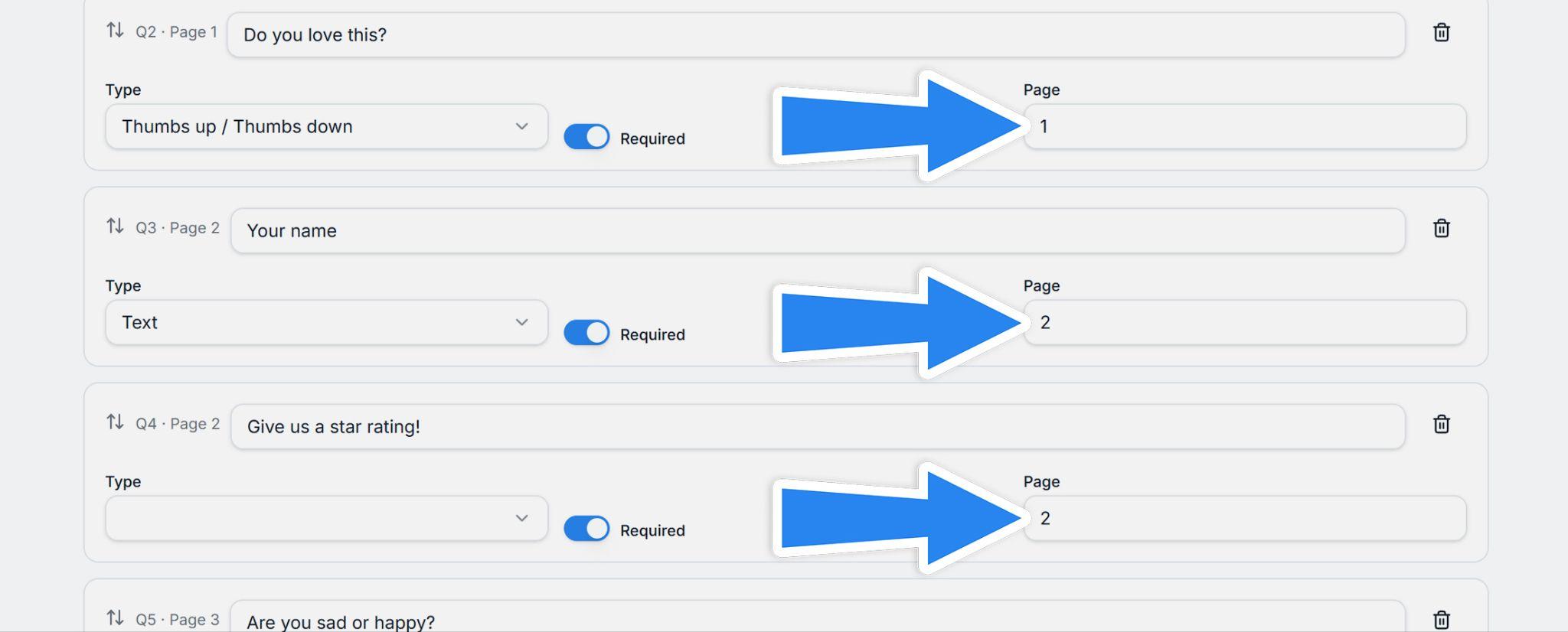
Aim for a similar number of questions on each page so your survey feels balanced.
Should your survey be within the page or in a modal?
Free Comments surveys can be embedded in the body of a web page or can appear in a modal (a "popup" that overlays your content).
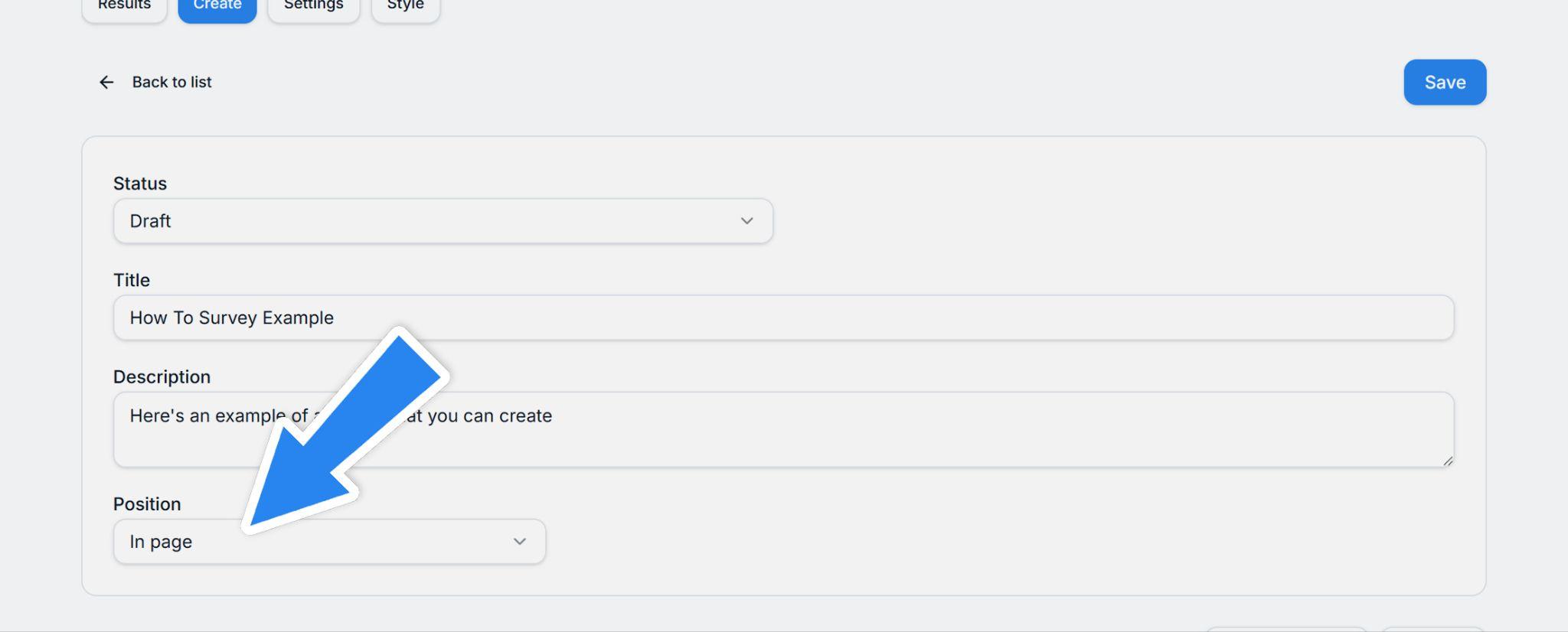
To choose whether to show your survey in-page or in a modal, change the Position setting here:
If you go to the Style tab, you can preview how inline and modal surveys look here:
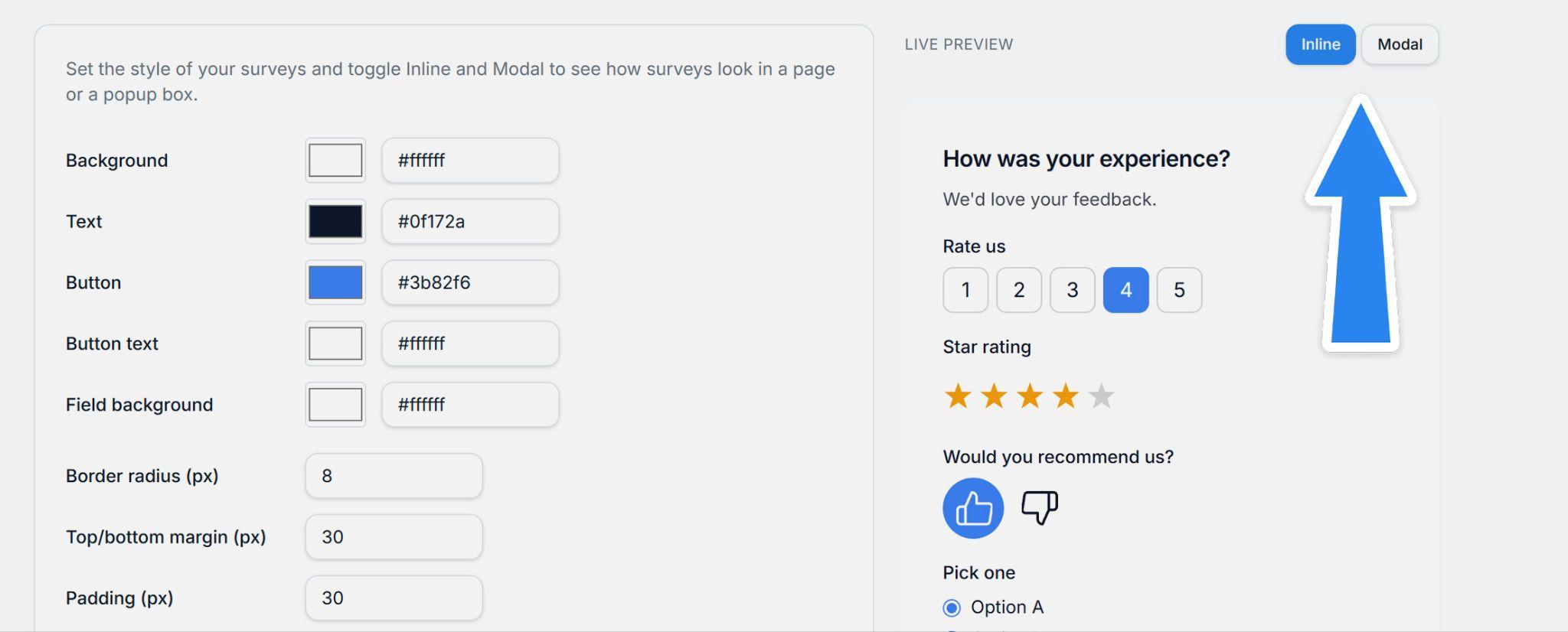
So, which will you choose, inline or modal?
It depends on what you want to do. A modal survey will drop in and ask questions. A modal can be a bit of a surprise, but will work on all pages you put the code on. It's useful for requesting quick feedback or asking if people found what they were looking for.
An inline survey will typically sit in a page between content that explains what it's about. These are more useful for longer surveys, with pagination, where you're asking a series of questions.
Set your survey's status
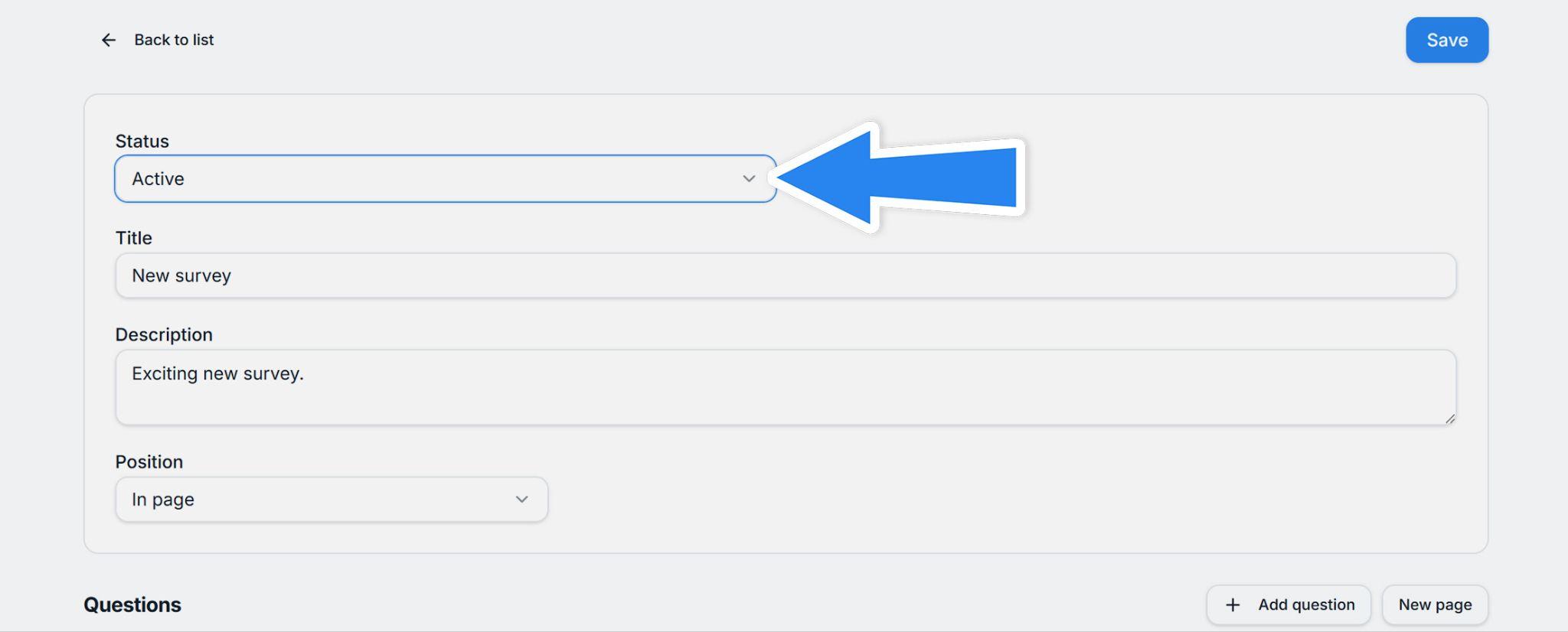
Surveys also have a status setting. To show on your site it needs to be Active, like this:
Finally, embed your survey
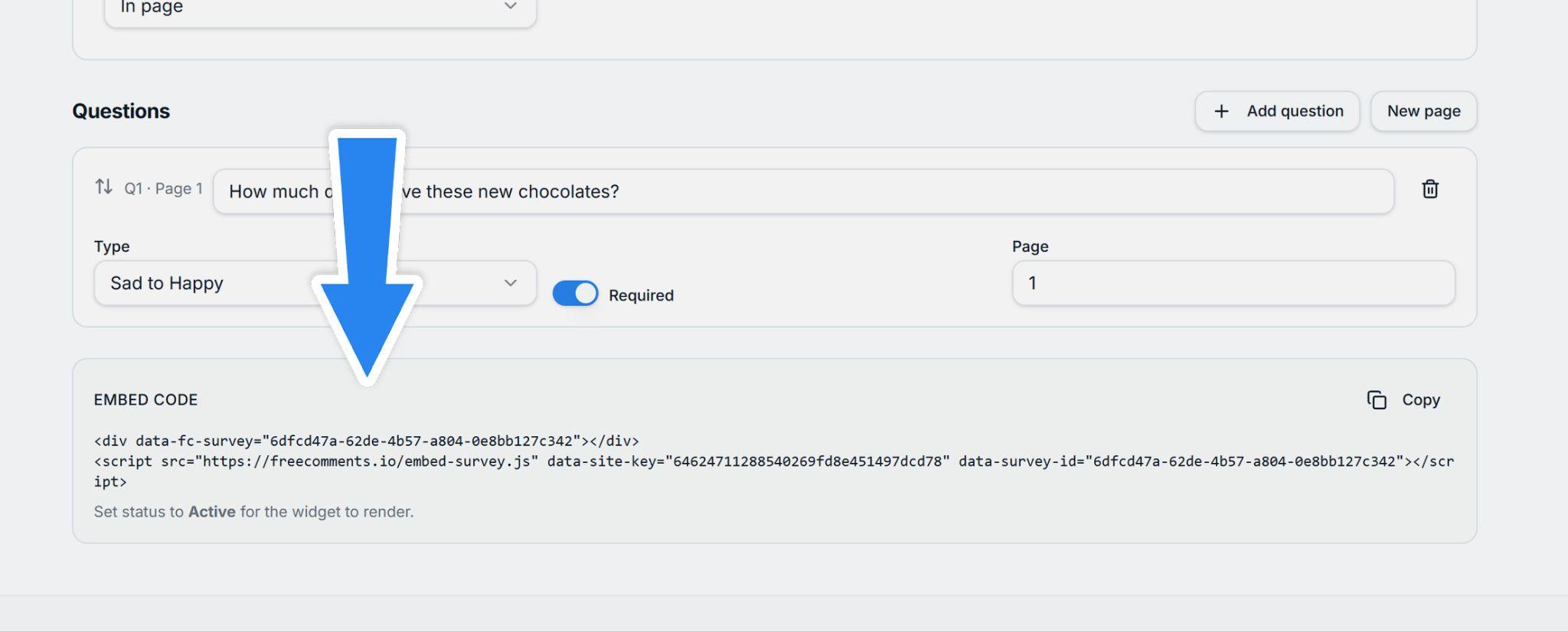
Now you've added all your questions and set the survey Status to Active, you're ready to embed your survey into your website:
Viewing results
You can see the results of your survey in the Results tab:
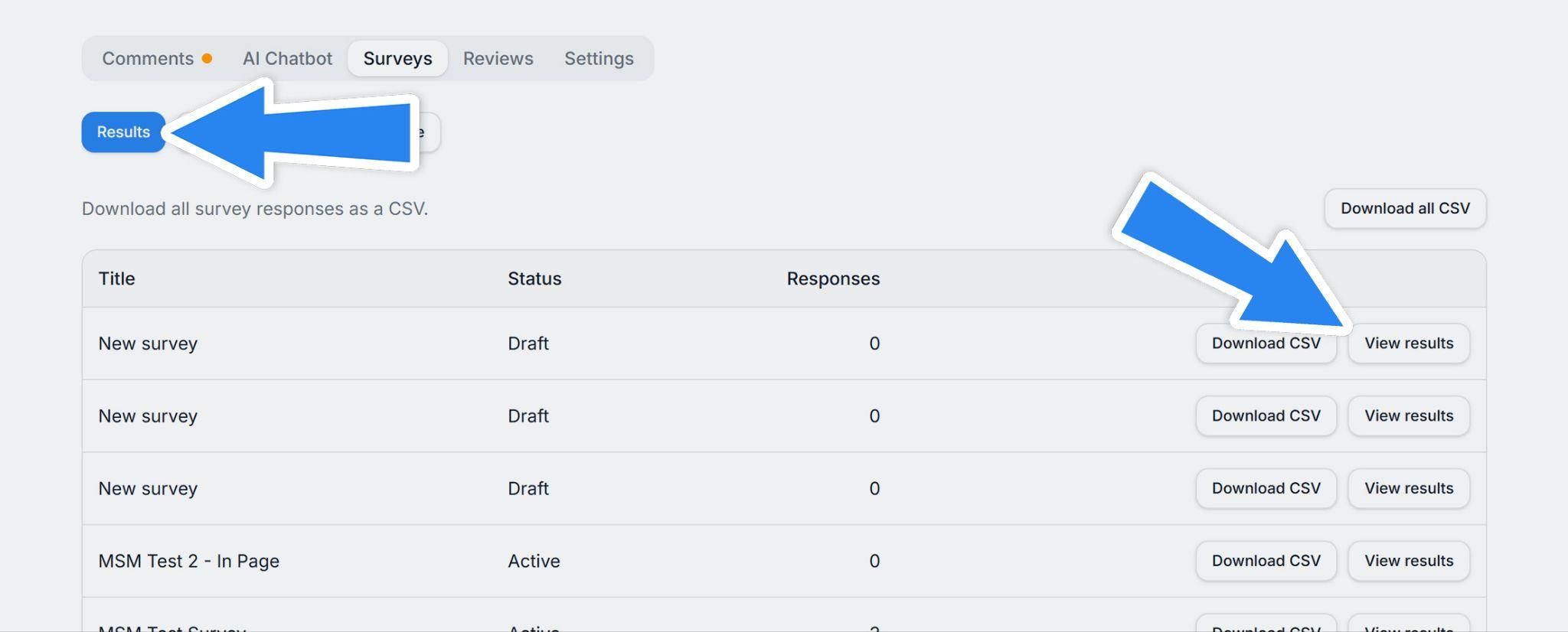
If you're on a paid plan, you can also Download all the results as a CSV file, which you can then take into your spreadsheet app to analyse in detail.
Example survey
Here is an example, in page survey, with pagination:
Get started today
Get started for free, and upgrade when you're ready for pagination, CSV downloads and more.