
All our embeddable widgets can be styled nicely to suit your website. We have included a range of styling options, which offer a lot of flexibility, without things getting too complicated.
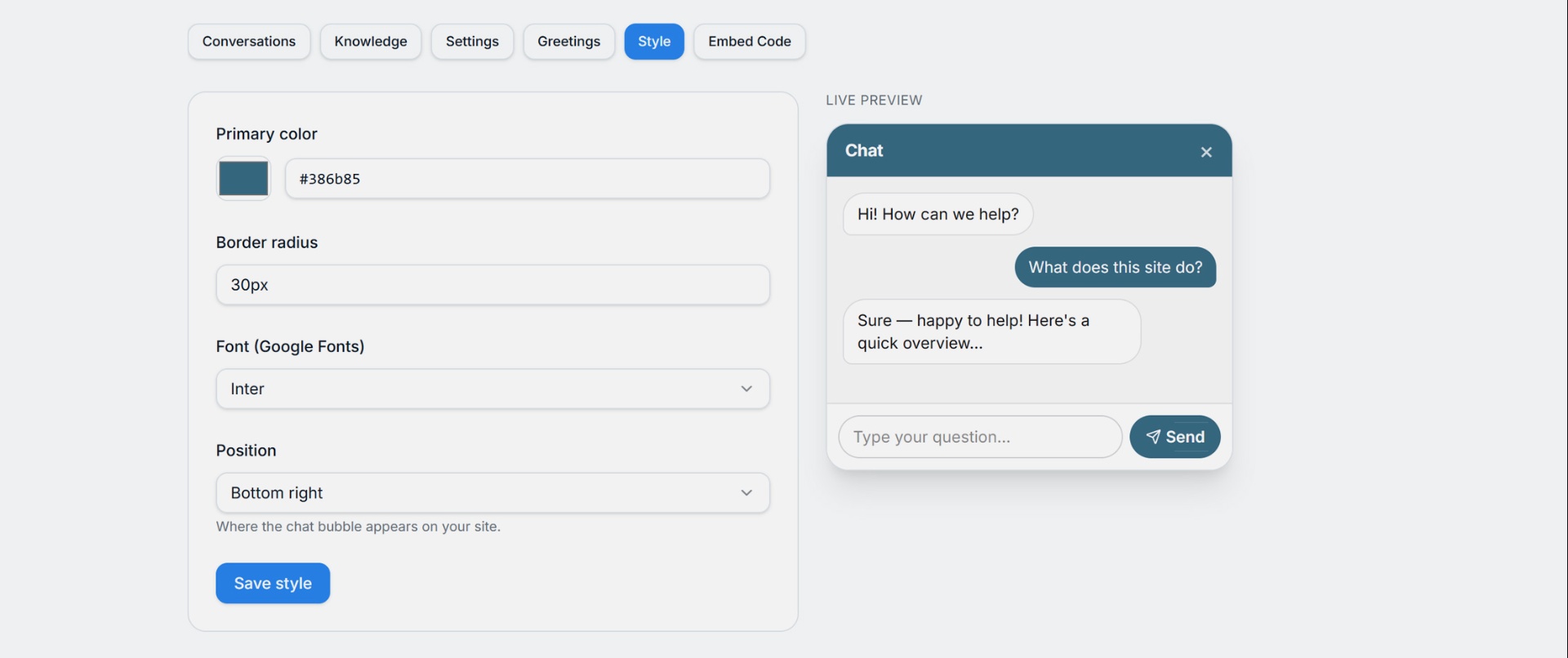
However, our widgets are designed to be embedded in any website, regardless of how it has been themed. It's impossible to promise that things will always work 100% correctly.
Sometimes things don't look or work quite right, or you want to customise the look of the widgets a little more. For this we need to make some changes to our CSS.
What is CSS?
Websites use CSS (Cascading Style Sheets) to set the appearance of everything, from headings and text through to the size, colour and shape of other elements on the page.
By setting styling options in your Free Comments widget, you are setting CSS rules that determine how things look.
Of course, you can specify your own CSS rules in your website to override the Free Comments rules. This is how you can make advanced styling changes to your Free Comments widgets.
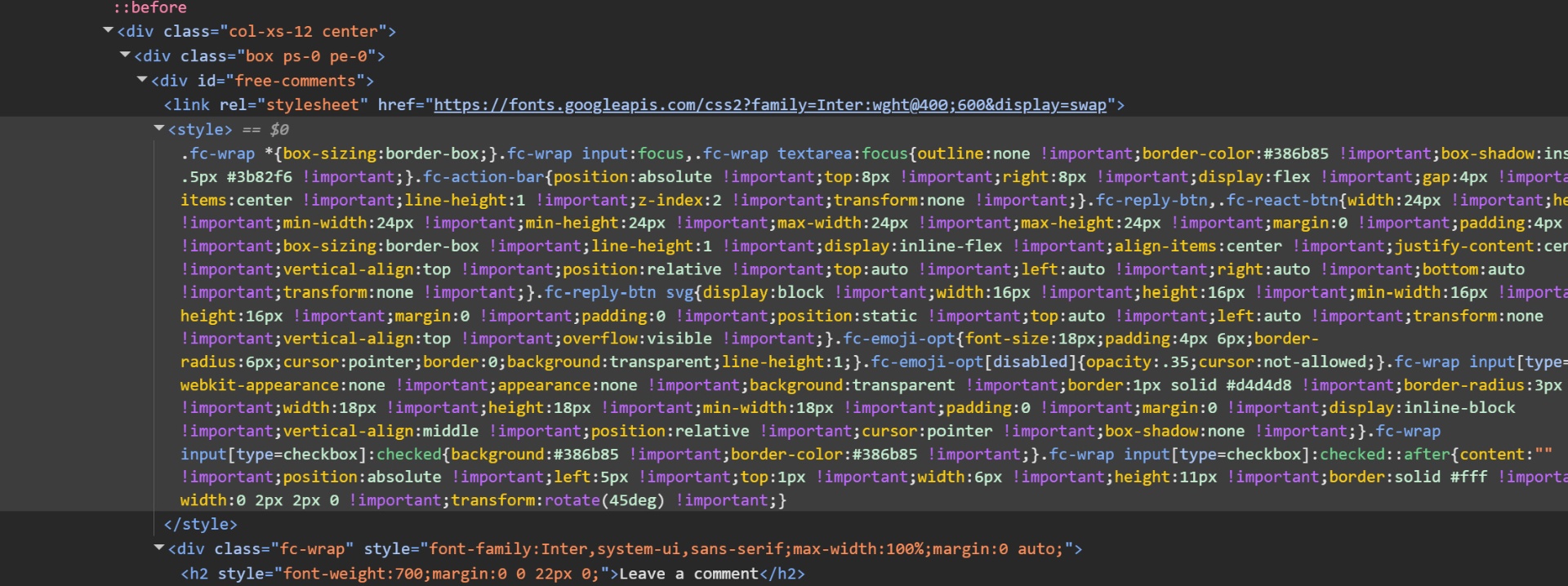
Inspecting the widget's CSS
We need to inspect the widget's CSS in order to work out what to change.
To do this:
- Open your website in Google Chrome.
- Launch the Developer Tools (DevTools):
- Windows & Linux: press Ctrl + Shift + I
- Mac: press Option + ⌘ + I
- Click the Inspect button to start inspecting styles.
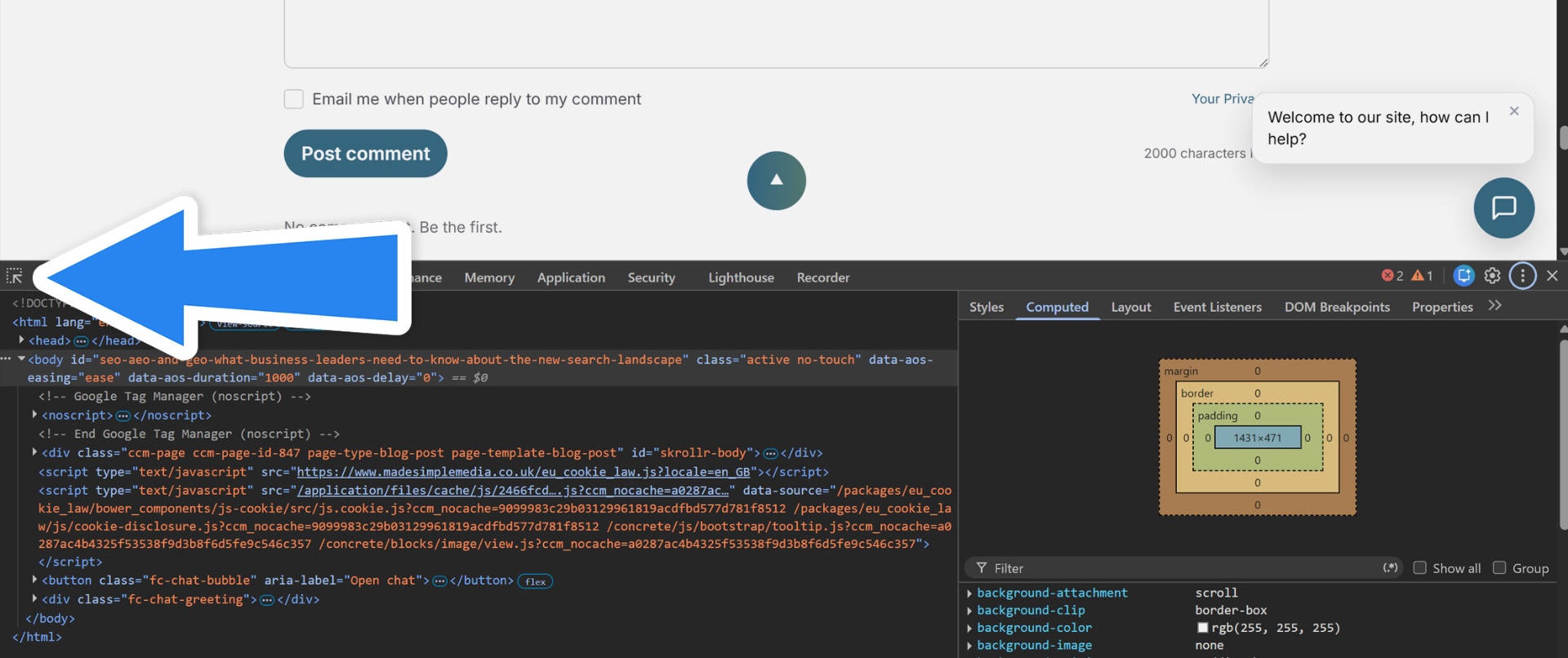
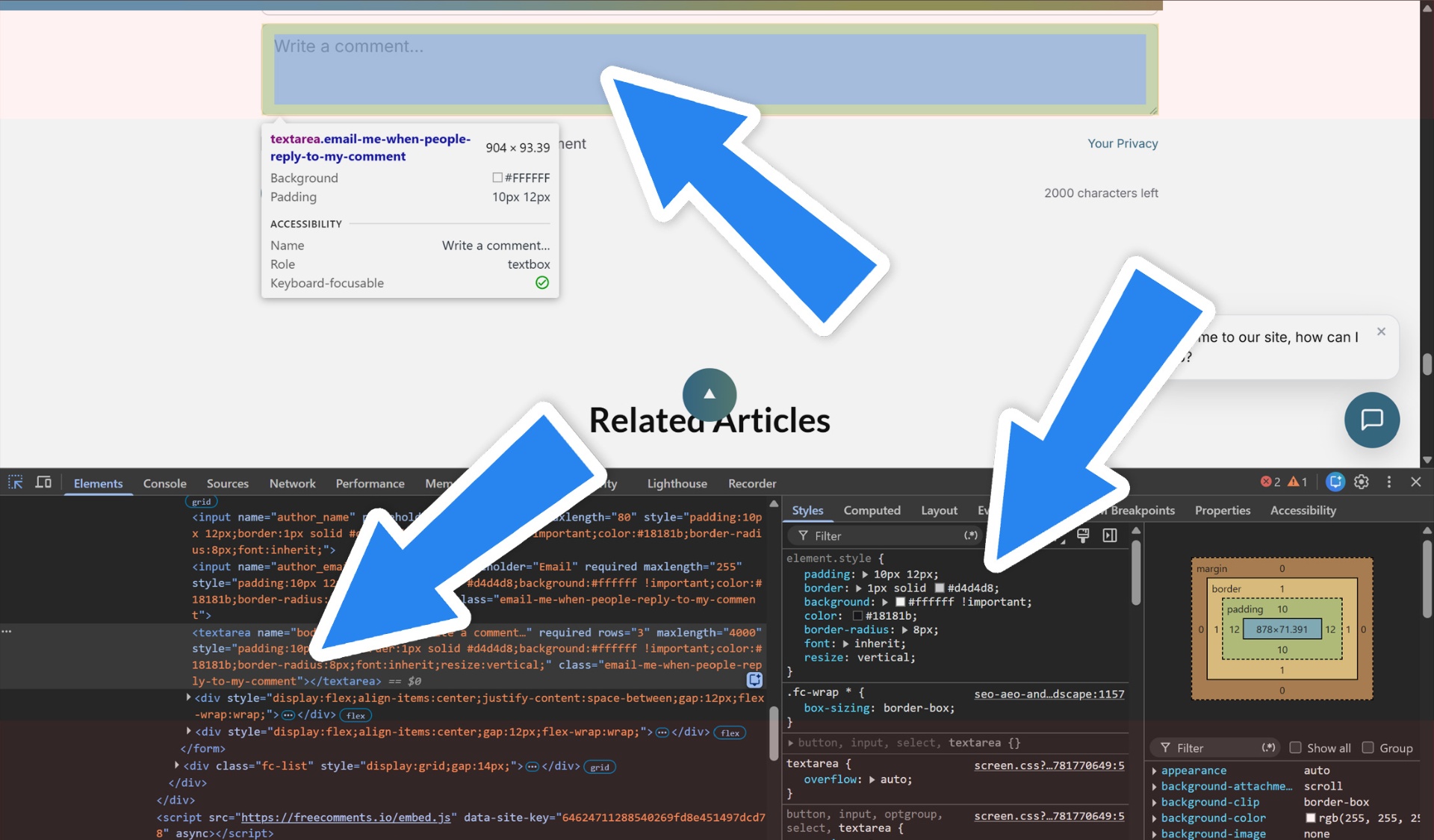
When you click Inspect, you can hover any element on the page — for example the main message box on the comment widget. You can then see the HTML for the widget's element on the left, with the styles on the right. You can even click the styles and change them, right there in your browser.
Making CSS changes
Play around in the console to change the styles to what you want and make a note of them. For the next bit, you may need a web developer to make those changes in your website's theme.
If you don't have access to your website's files, you can create a block of styles in your site by editing the page. You'll need some sort of HTML block or function to insert HTML with <style> tags, for example:
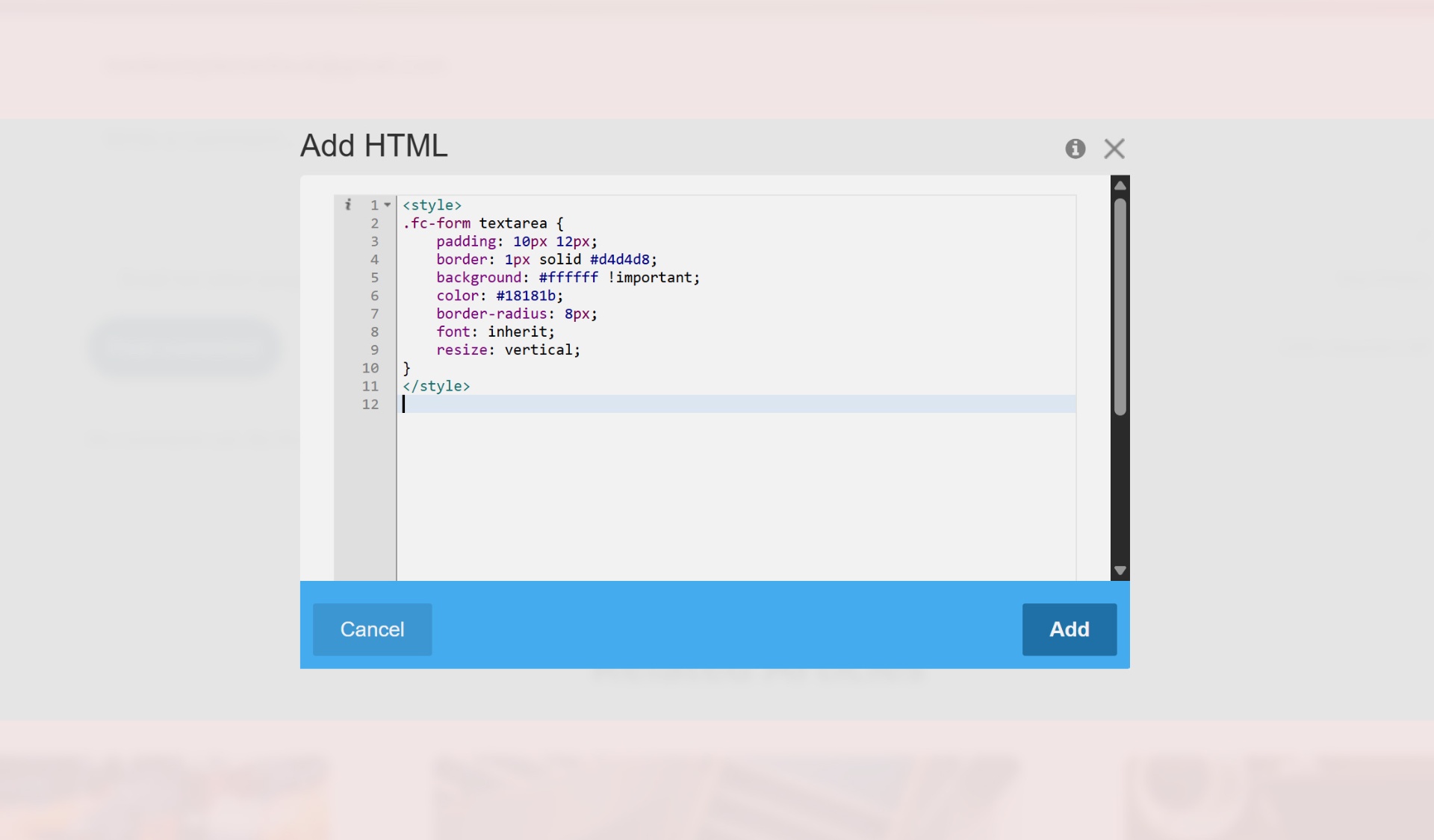
<style>
  .fc-comment-form textarea {
    border-radius: 12px;
    border-color: #6366f1;
  }
</style>
Save everything, clear any caching plugins and do a hard refresh when done.
Alternative: hire a front-end developer
Hopefully the built-in styling options in Free Comments are enough to make your widgets look right at home in your site. But if you need to do some advanced styling, a front-end developer can make any CSS changes you may need. In fact, at our agency, Made Simple Media, this is something we can help with, so just reach out.