
Completing your profile is crucial for maximising your visibility on Free Comments. Without your profile information, other users won't know who you are and are less likely to engage with you.
It's quick and easy to complete your profile and start benefiting from your new found visibility.
Finding your profile
Finding your profile is easy. Simply click on your avatar (your photo) top right, within Free Comments:
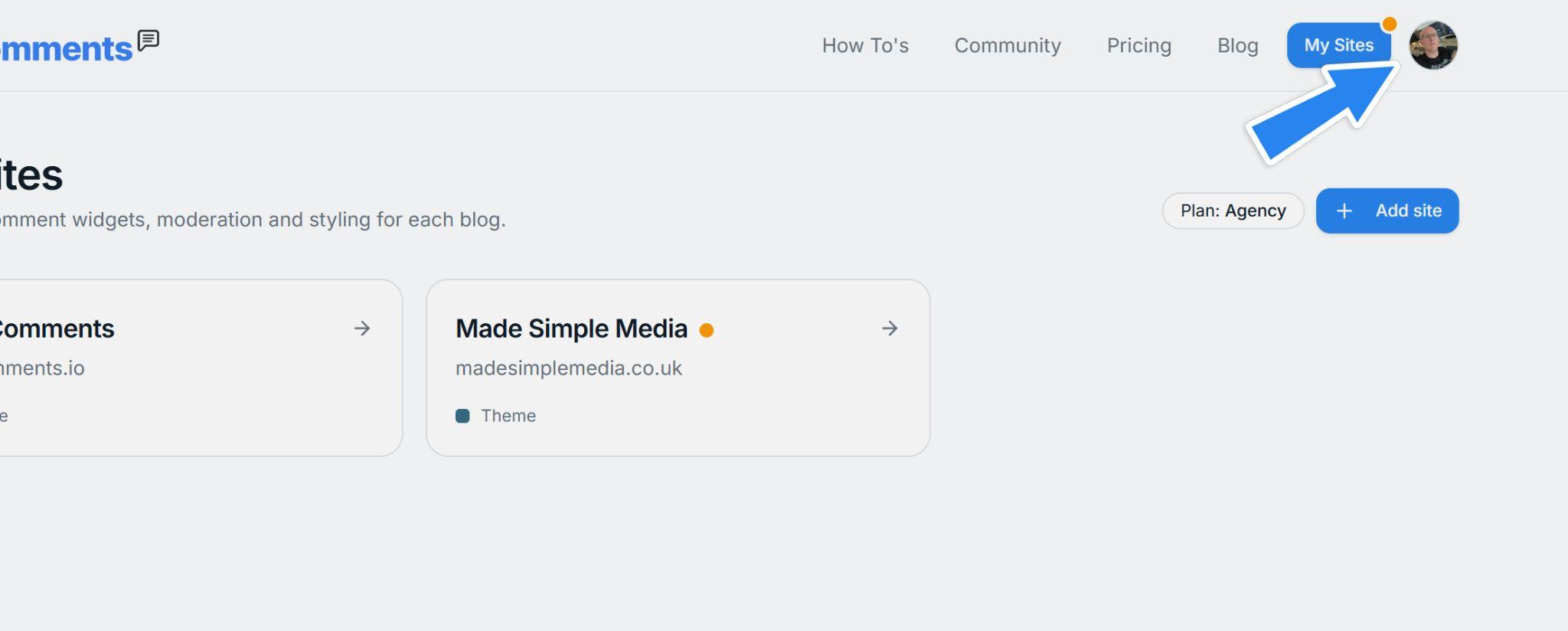
If you haven't yet loaded an avatar, you'll see a circle with the first letter of your first name inside it. You can still click this to open your profile navigation.
When you click your avatar, the profile navigation will open. Click on "Profile":
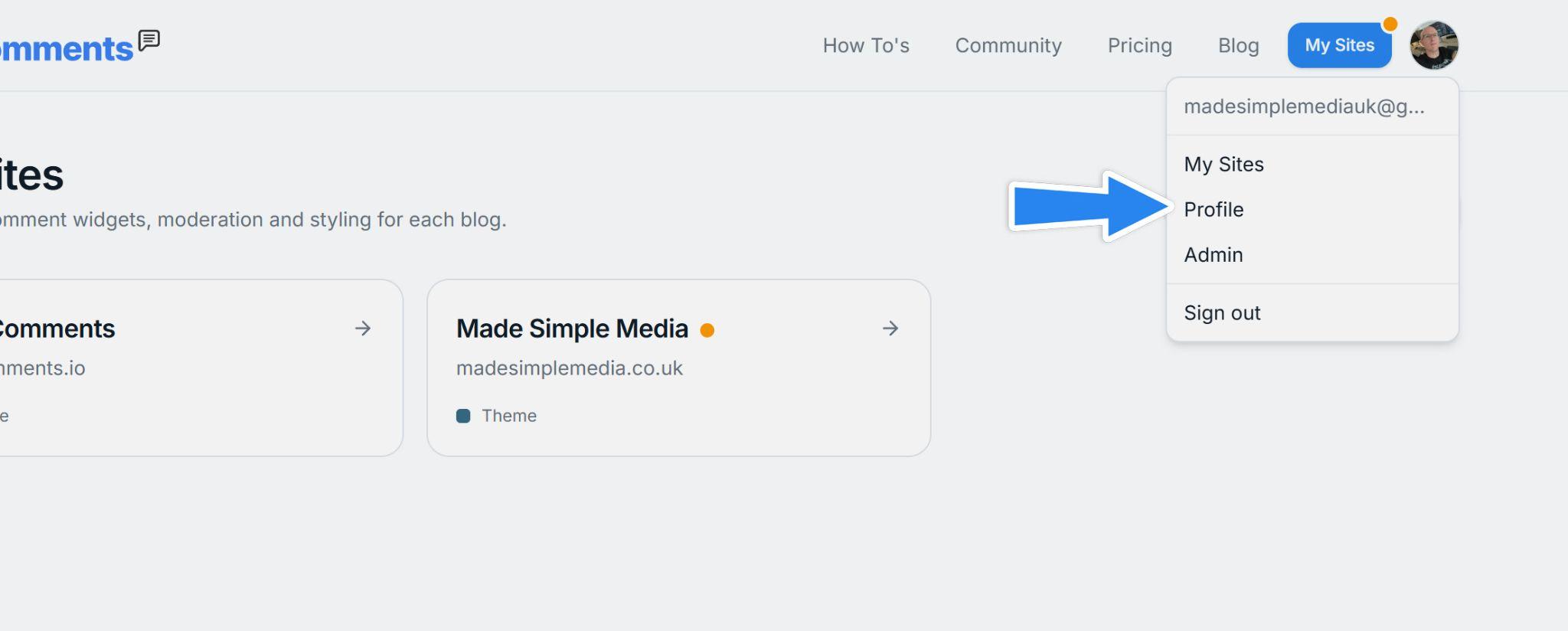
This will take you to your profile, where you can update your details and preferences.
Updating your profile
You're now viewing your profile, which looks like the screen below. Note the tabs for Public Profile, Avatar, Notifications, and Account:
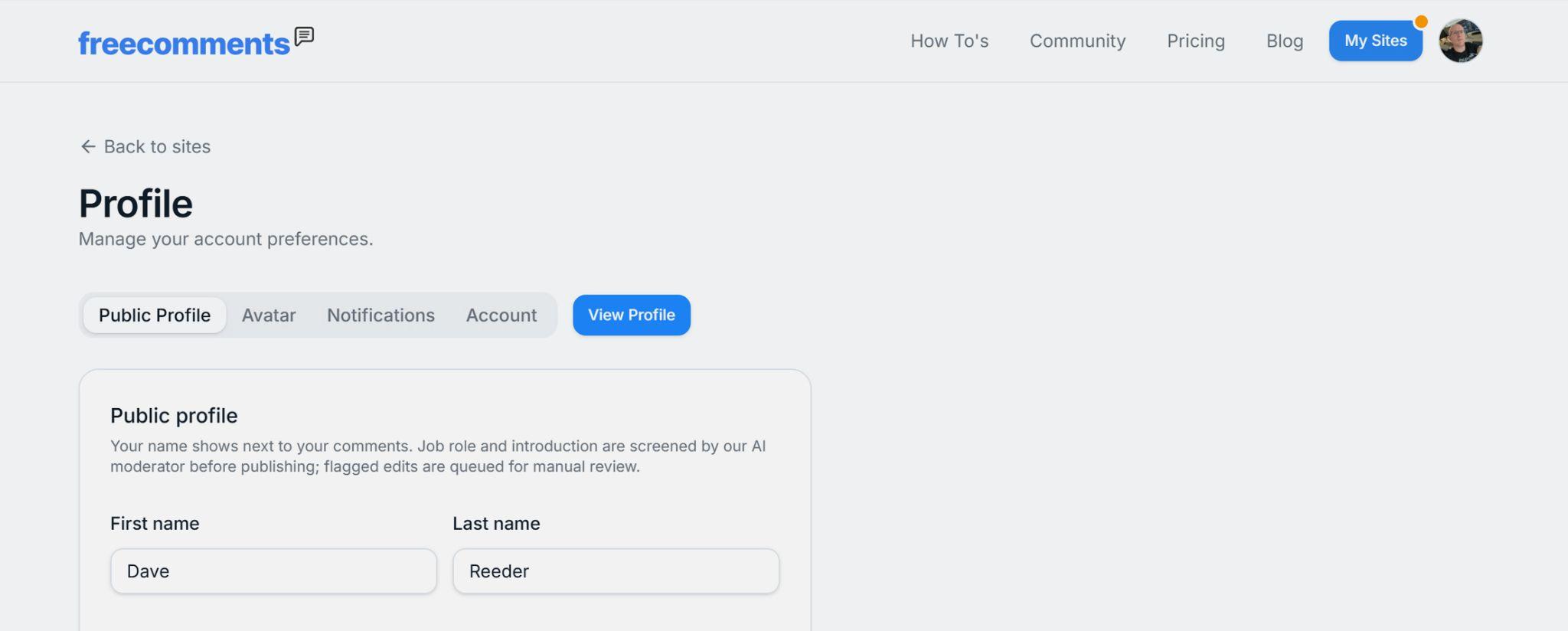
These options are explained below:
- Public Profile — your name and job role. You can also add an introduction, where you can talk about who you are and what you do. Below the introduction you can add your skills or services, depending on whether you're an individual, company, charity, etc. If you'd rather stay anonymous, tick "Hide my profile".
- Avatar — upload your own profile photo, logo, or other image. It helps other users quickly identify who you are, and makes you look more friendly when commenting and joining discussions.
- Notifications — opt in or out of the daily digest (an email summarising the comments you've received on your pages) and news and special offers.
- Account — shows your email address (which can't be changed) and lets you delete your account if you no longer want to be a member of Free Comments.
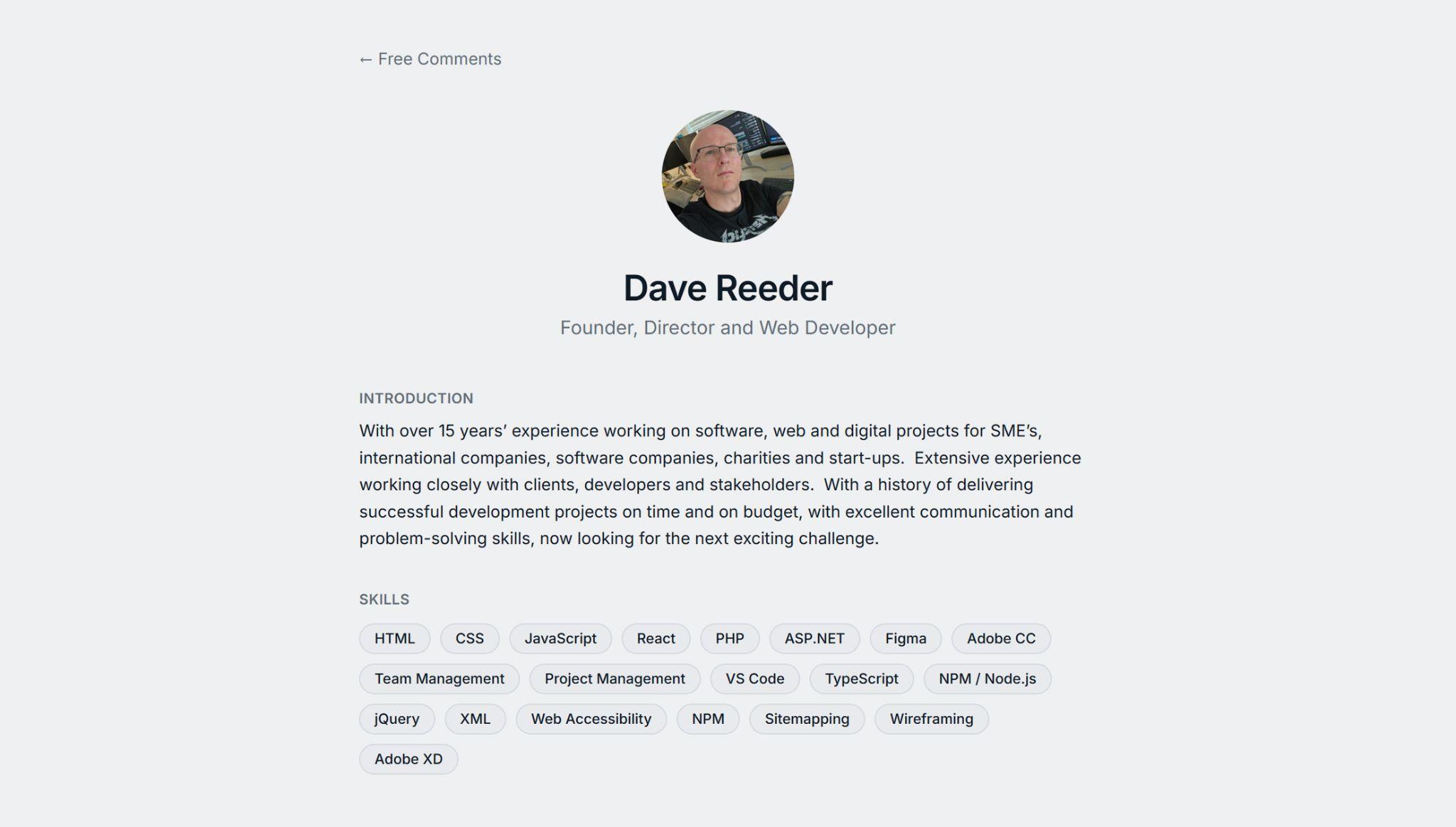
You can also click the blue View Profile button to see exactly how other Free Comments members see you:
If you have any problems, check out our support section — you can contact us from there if you need a hand.